How to Customize Recipes & Generate AI Photos with ReelToMeal
A step-by-step guide to extracting recipes from social media videos, customizing card designs, and generating professional AI food photography using ReelToMeal.
Customize and Generate Recipe Photos with ReelToMeal
First, Navigate to https://reeltomeal.app/
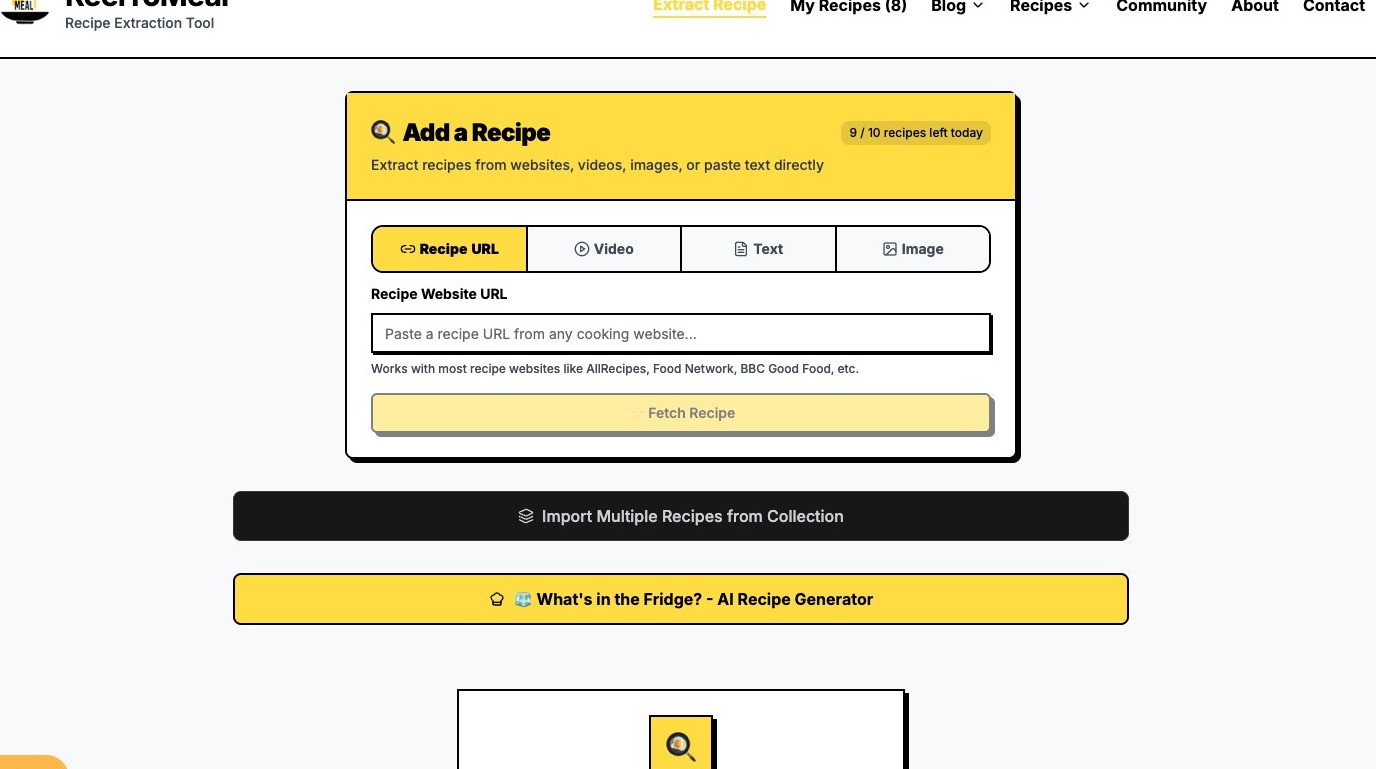
Click "Video"
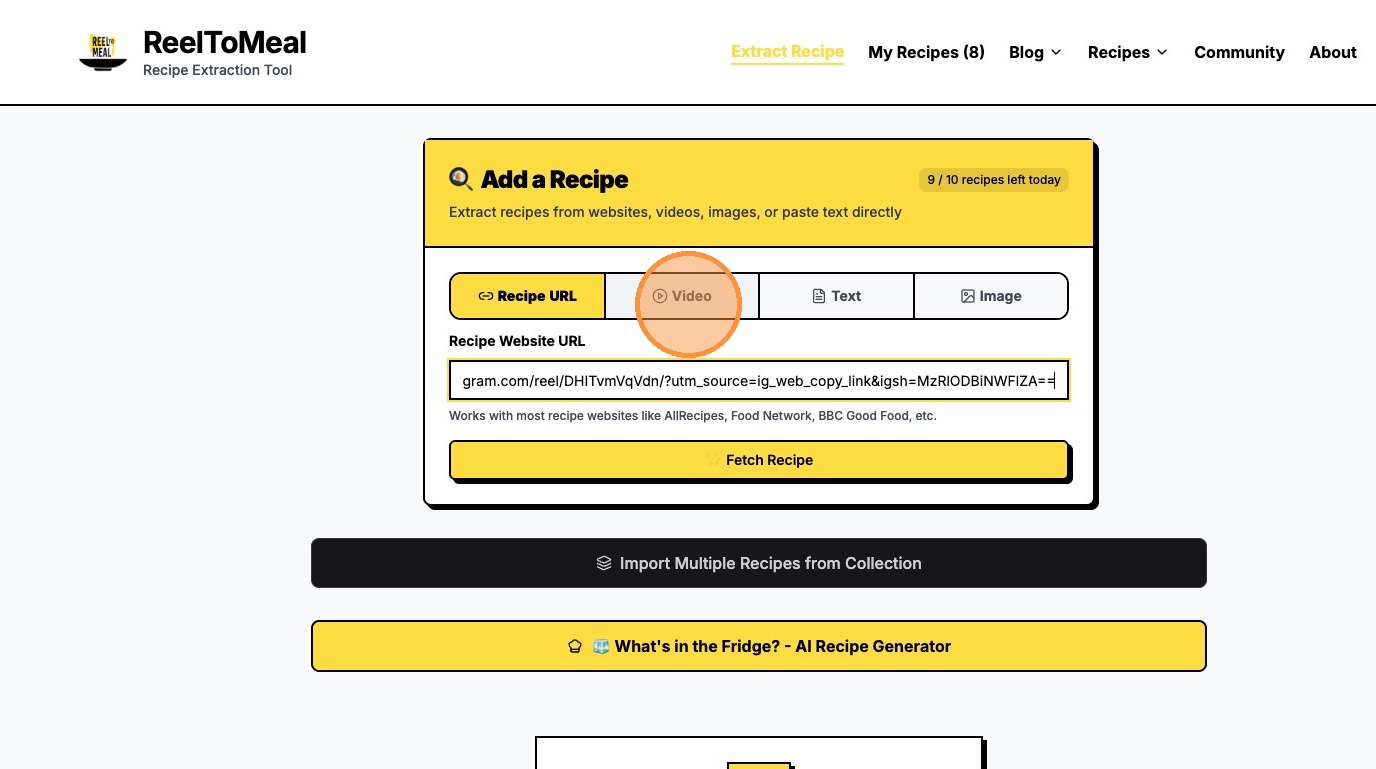
Paste your instagram link recipe that you would like to fetch
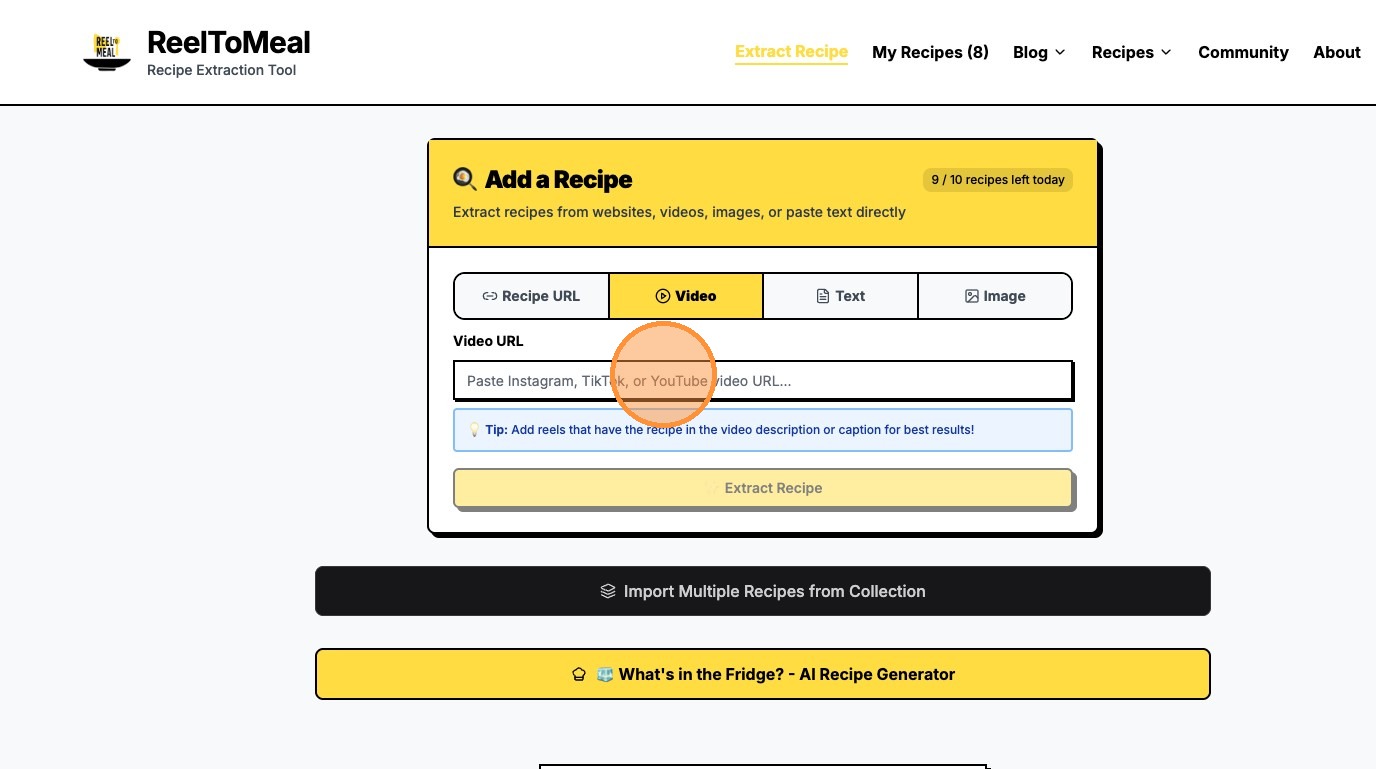
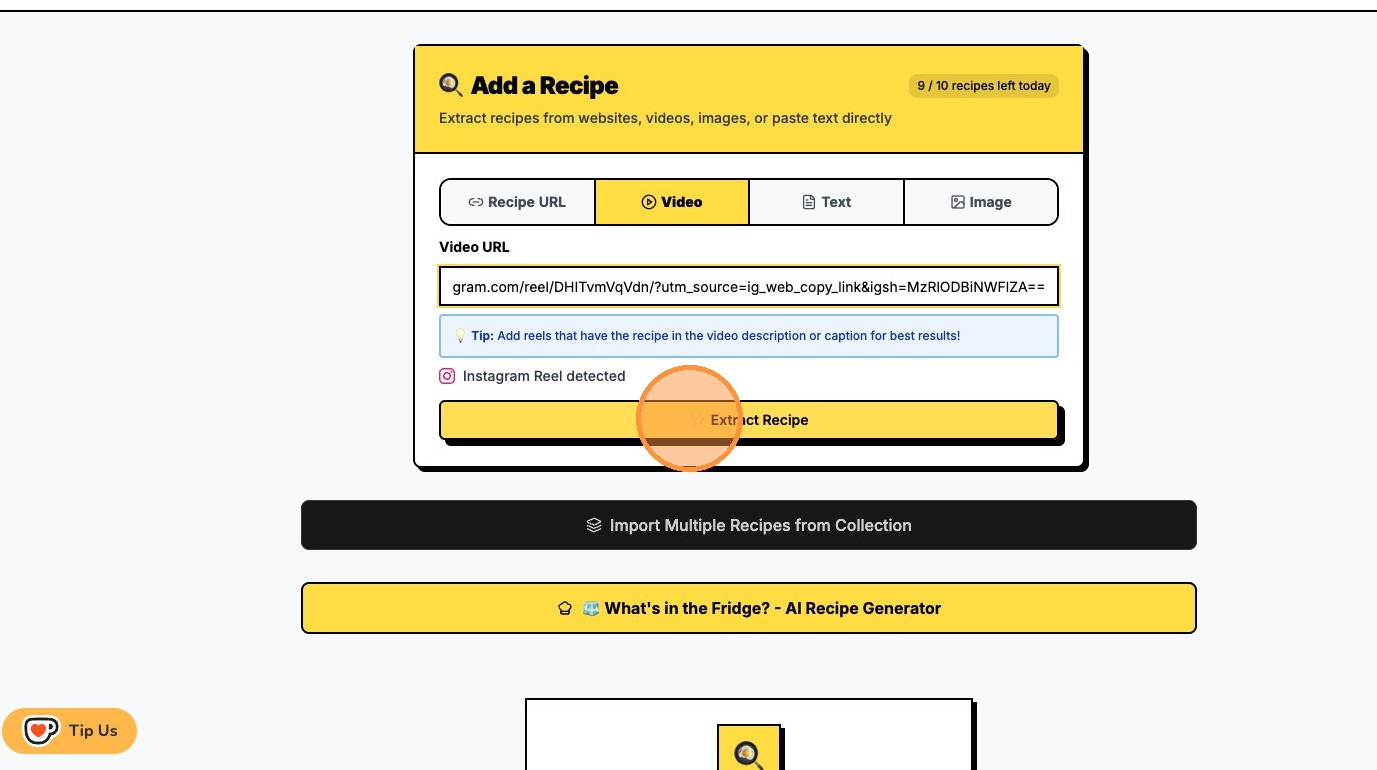
Click "✨ Extract Recipe"
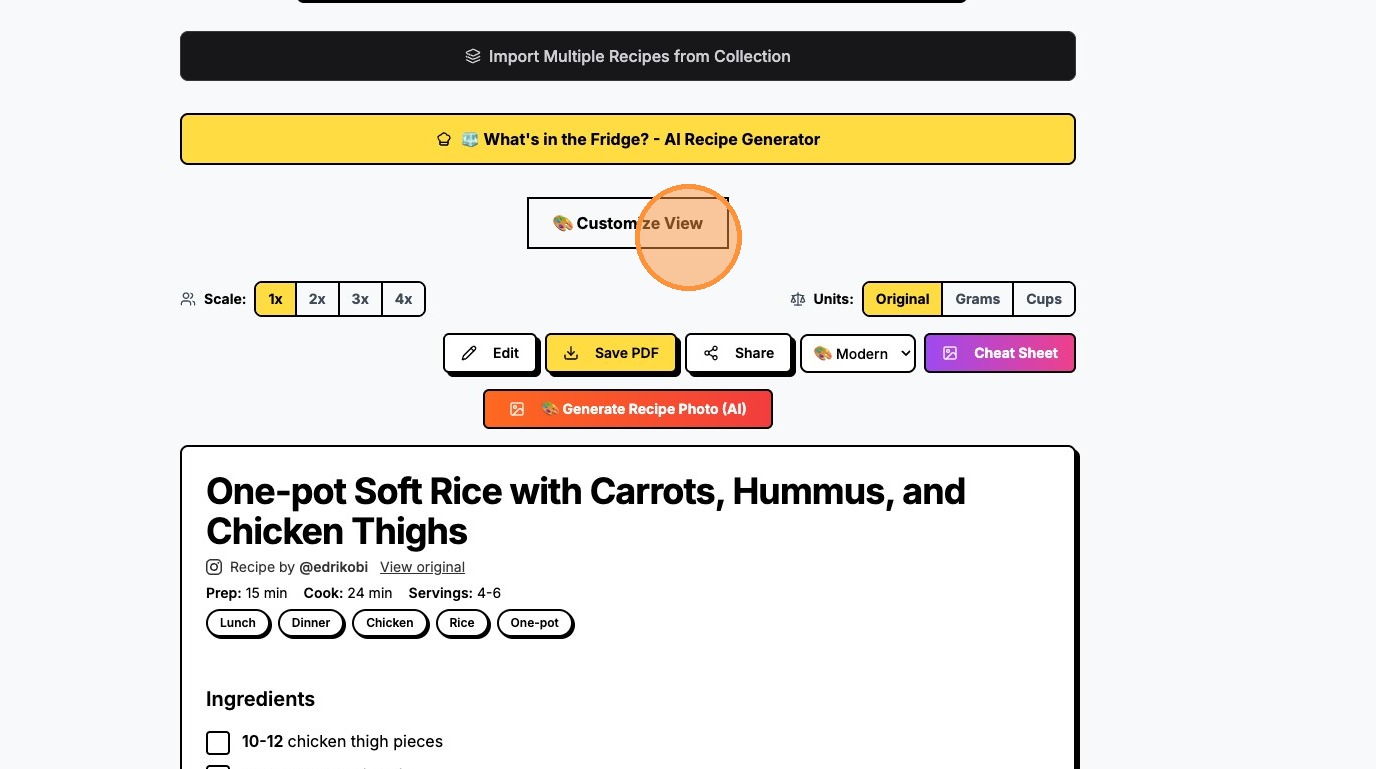
After we got our recipe, we can customize the view with different options
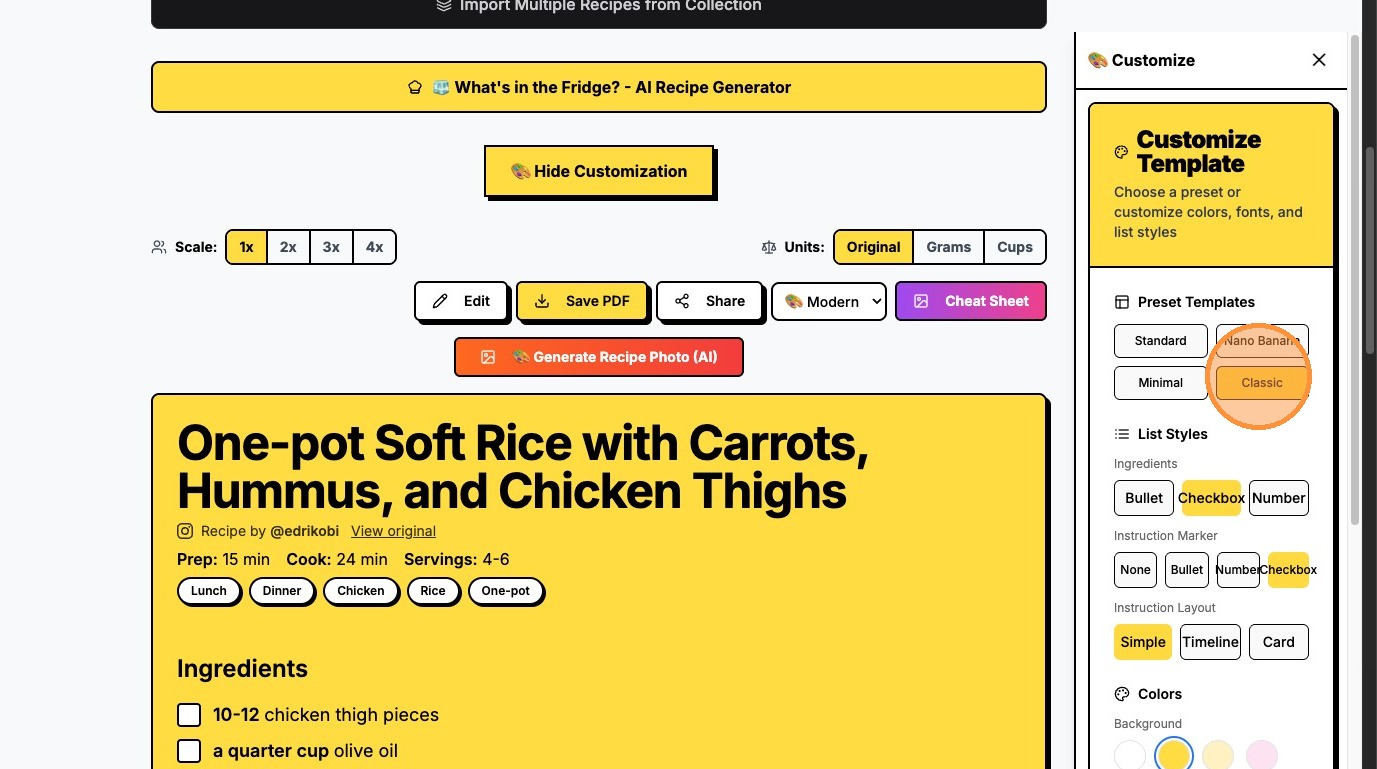
For Yellow background, Click "Nano Banana"
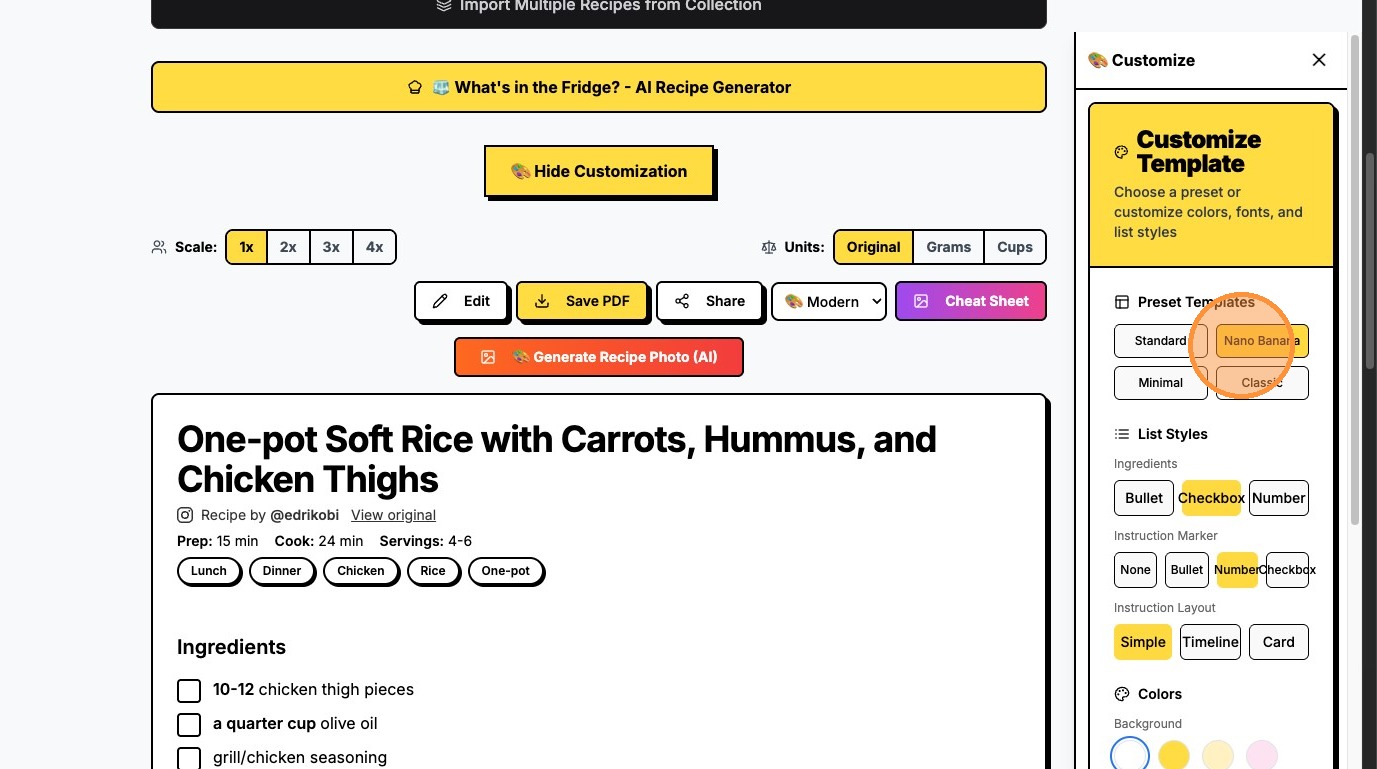
Alternatively, for a traditional look, select "Classic".
For a clean, modern aesthetic, select "Minimal".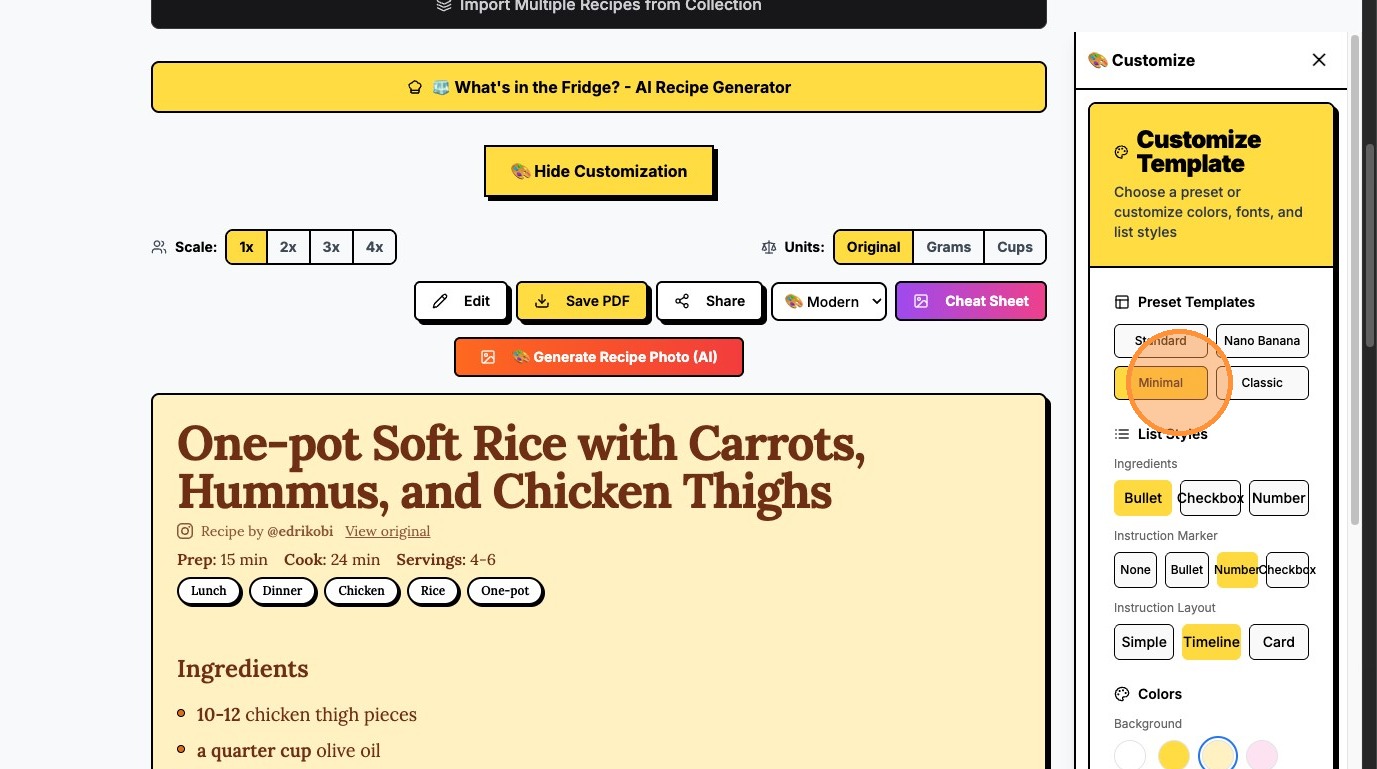
Choose your preferred list style. Click "Checkbox" for interactive lists.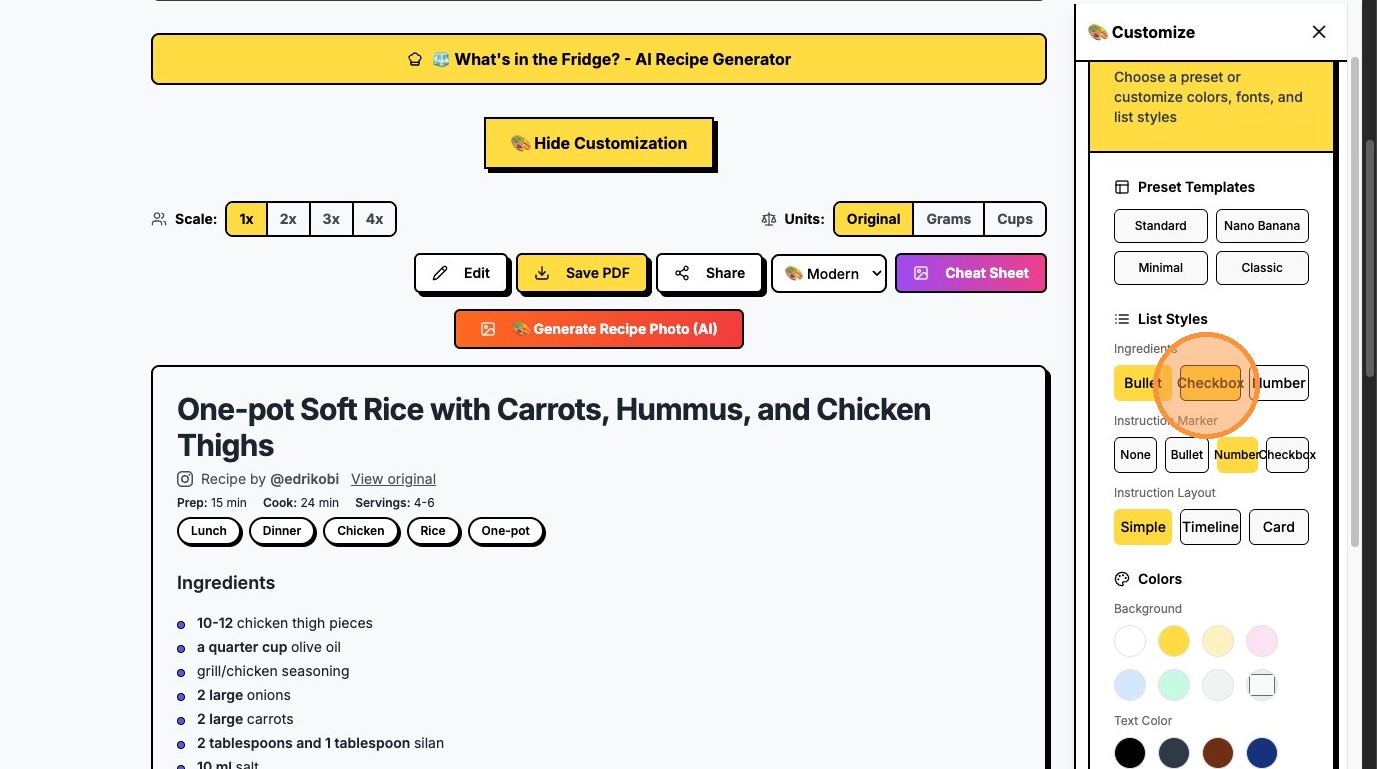
Click "Bullet" for standard bullet points.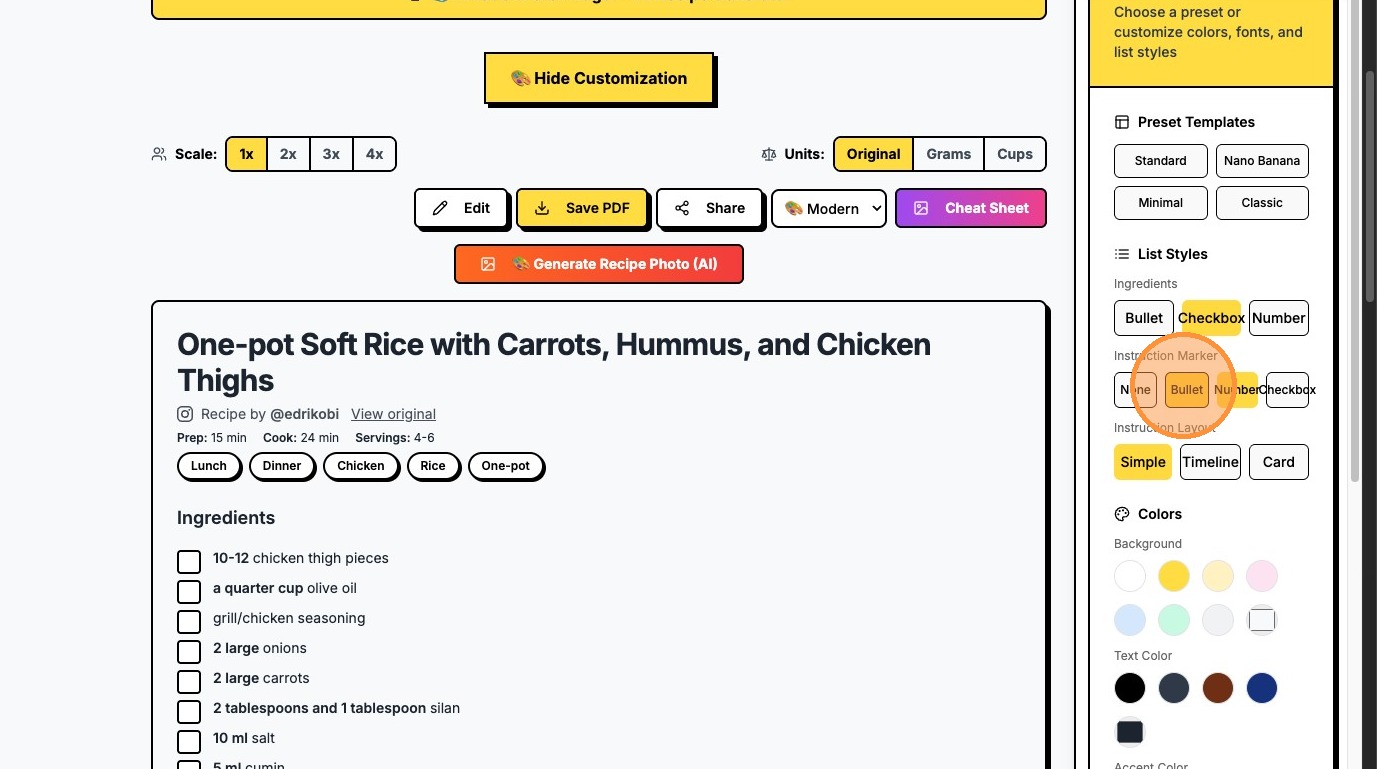
Click "None" to remove list markers entirely.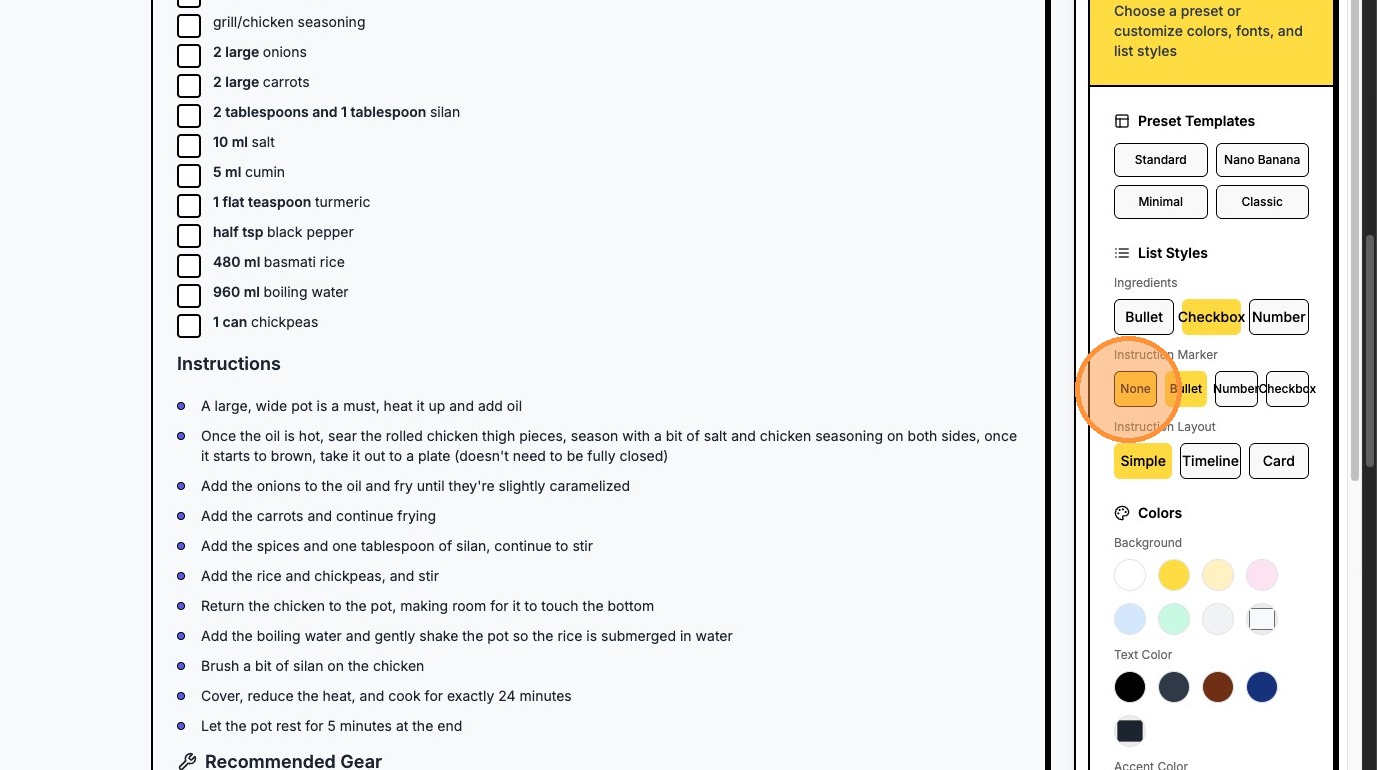
Click "Number" for sequential steps.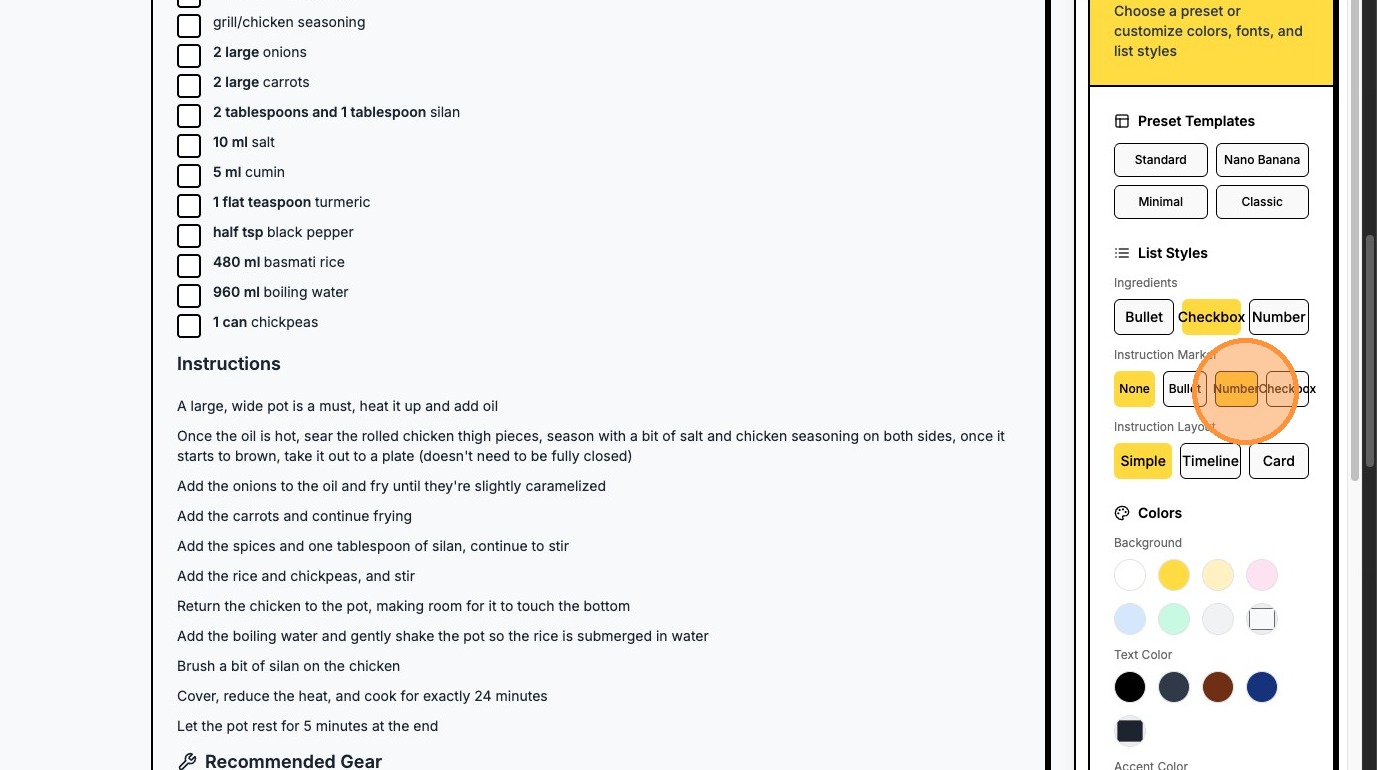
Click "Timeline" for a vertical step-by-step view.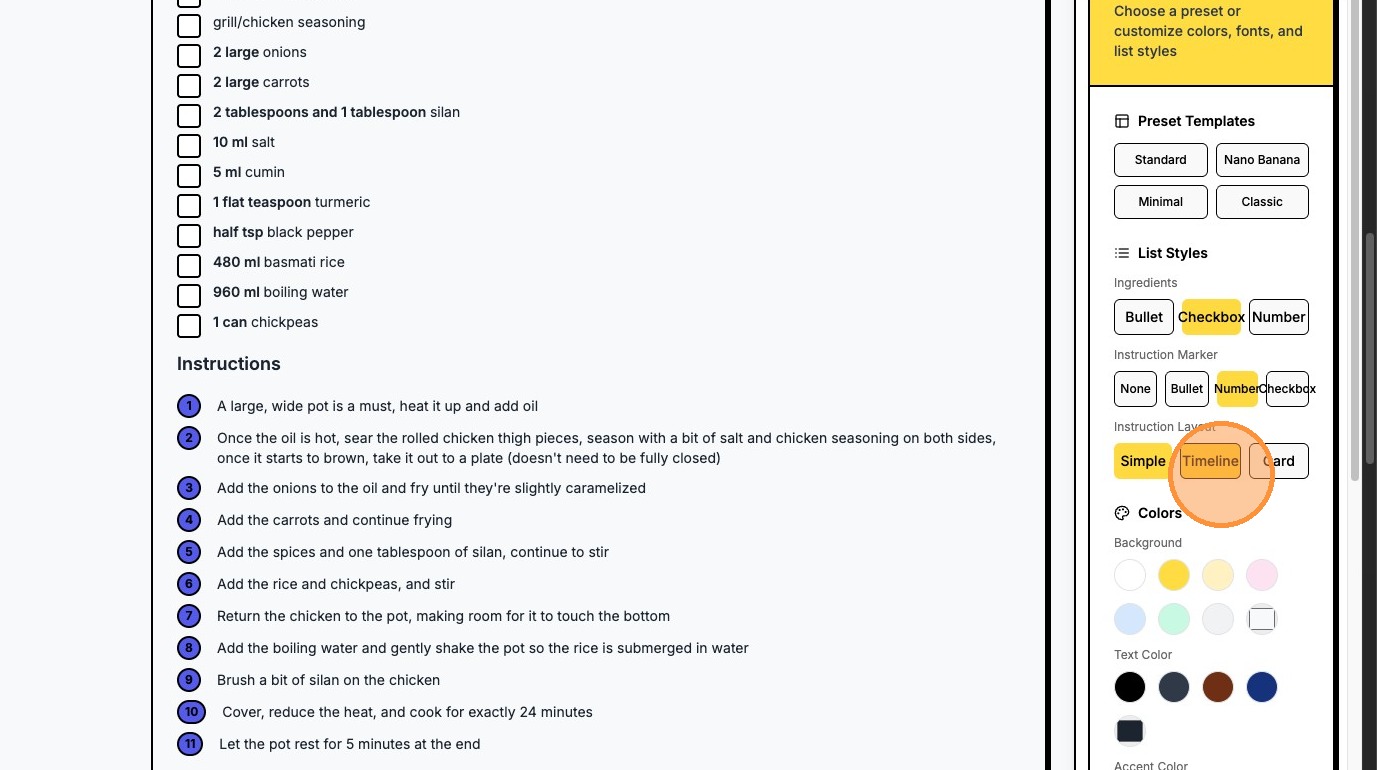
Adjust your formatting settings (shown below).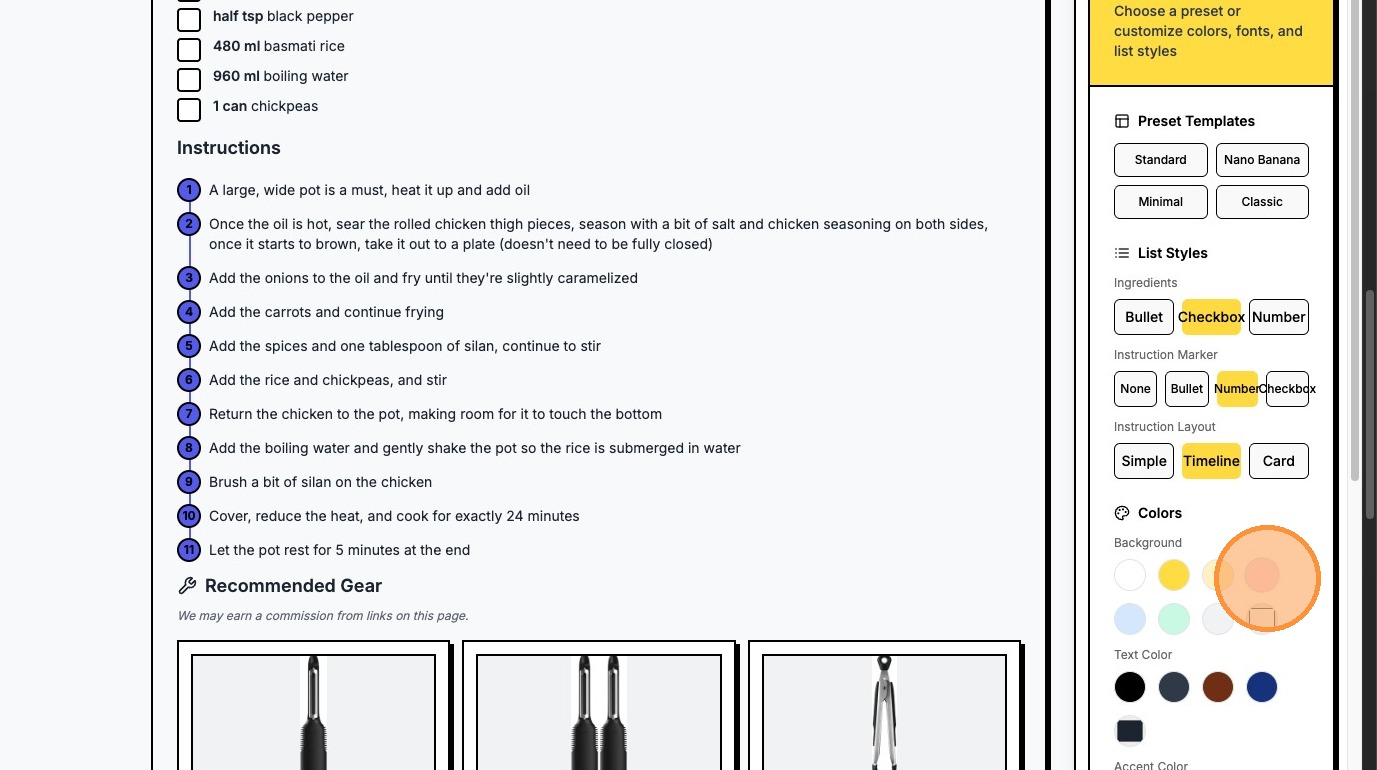
Toggle additional display options as needed.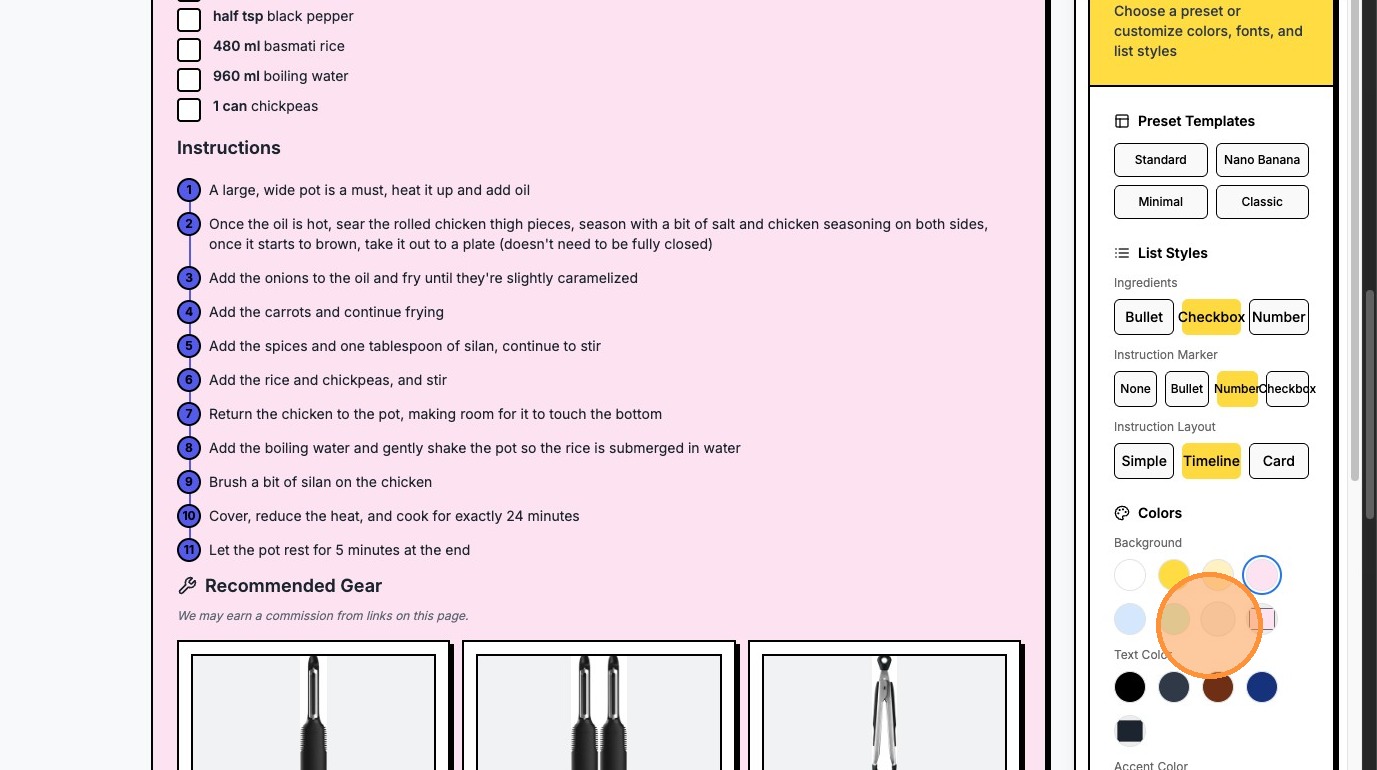
Select your preferred layout alignment.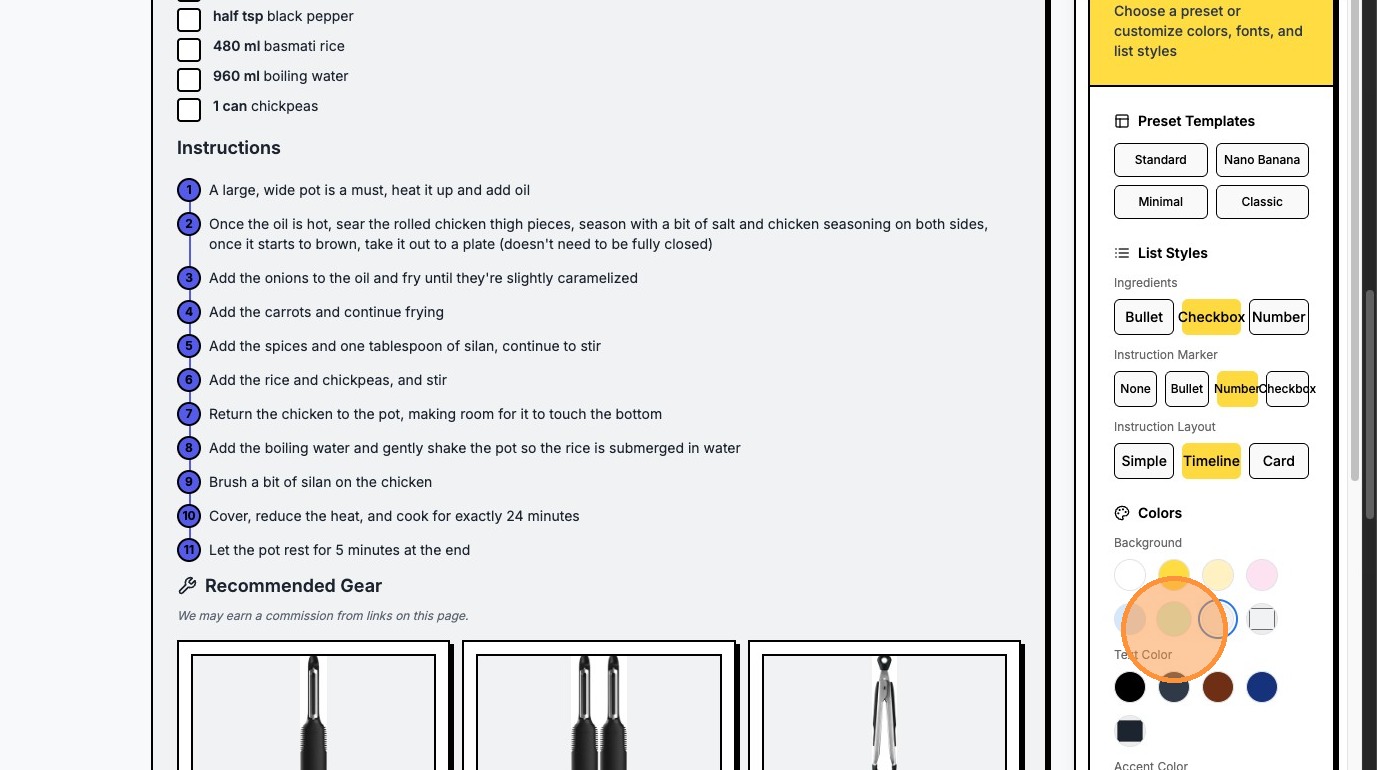
Adjust visual spacing elements.
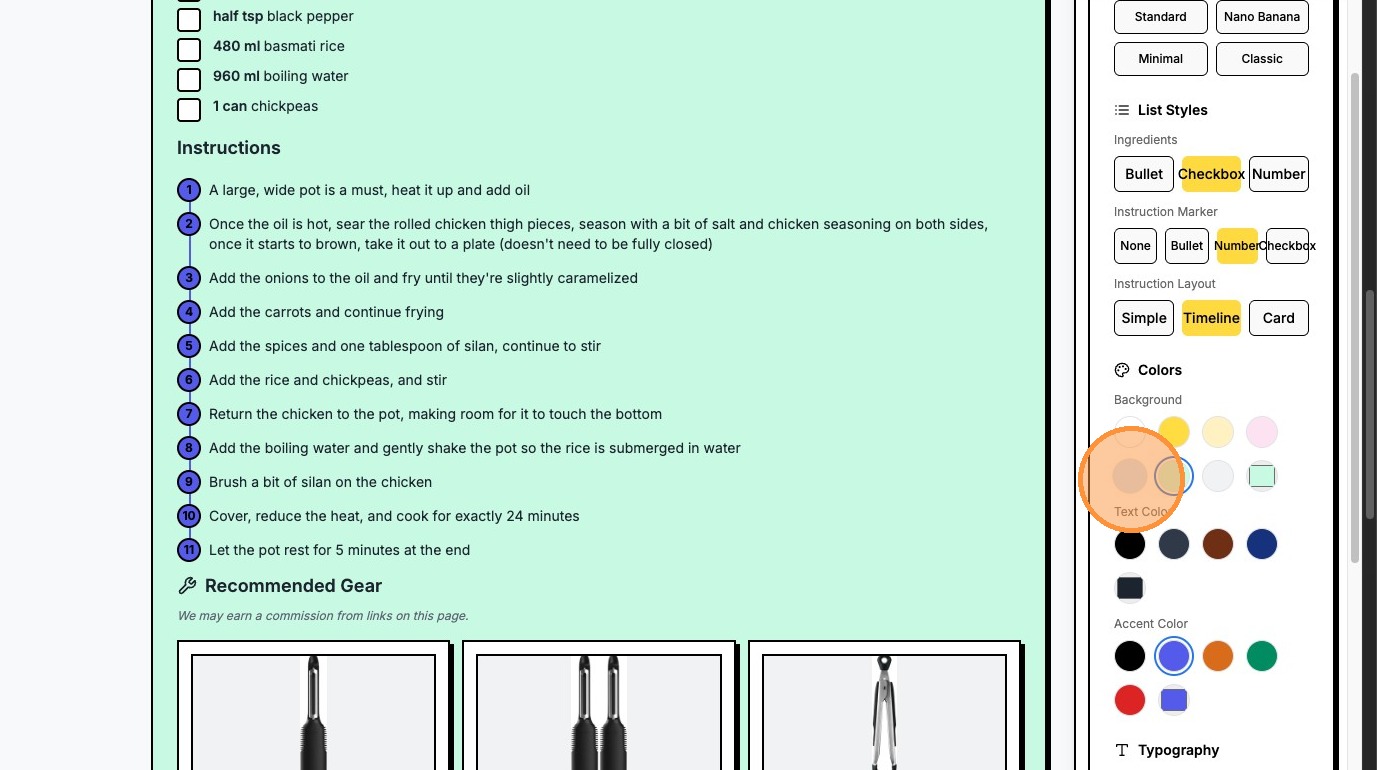
Fine-tune the card borders or structure.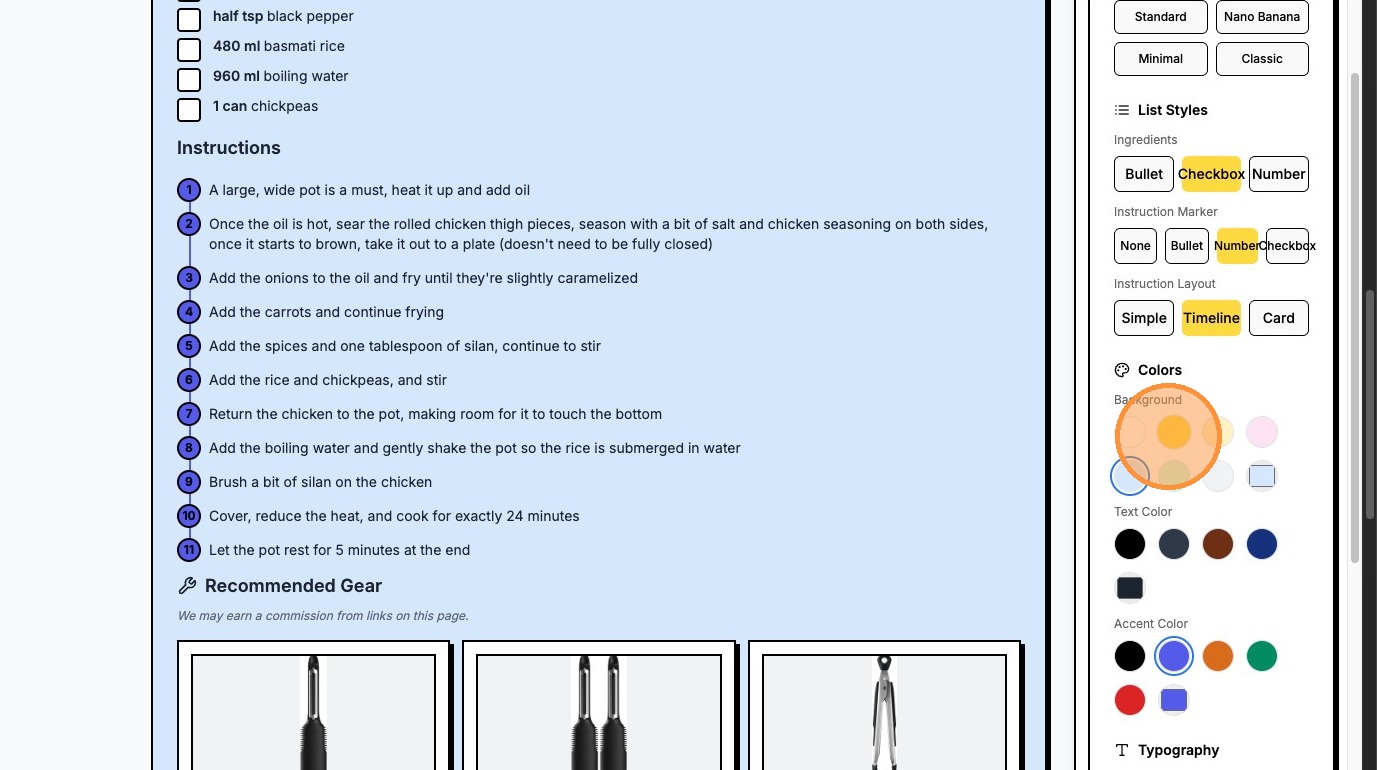
Customize accent details.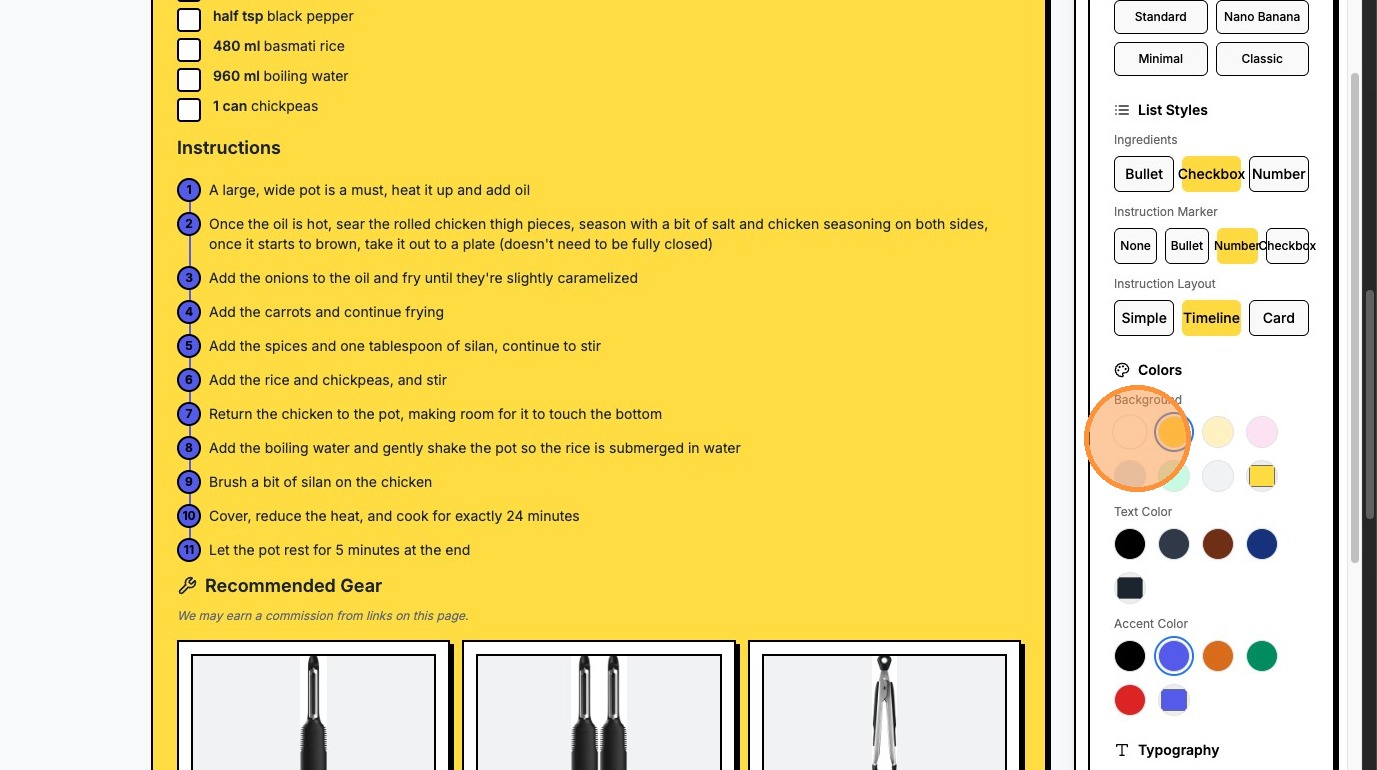
Finalize layout structure.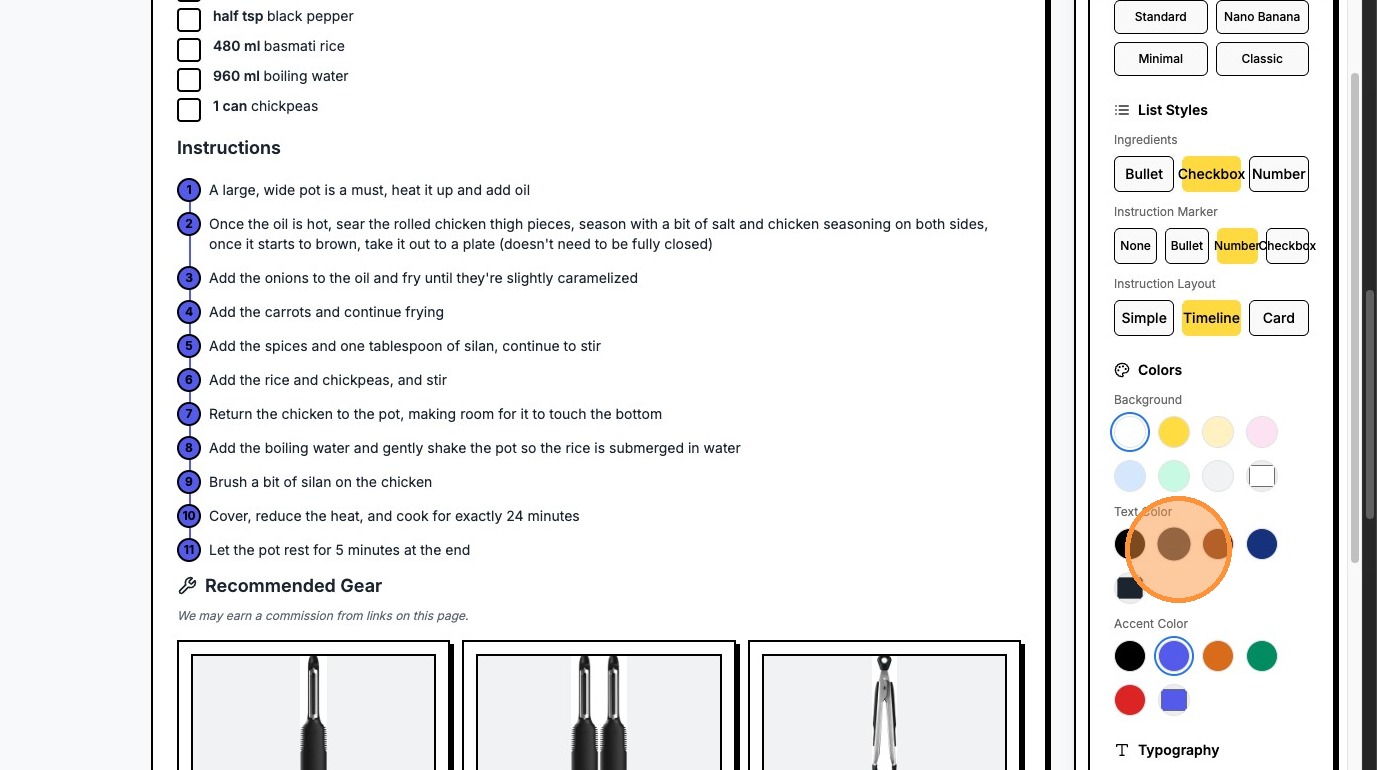
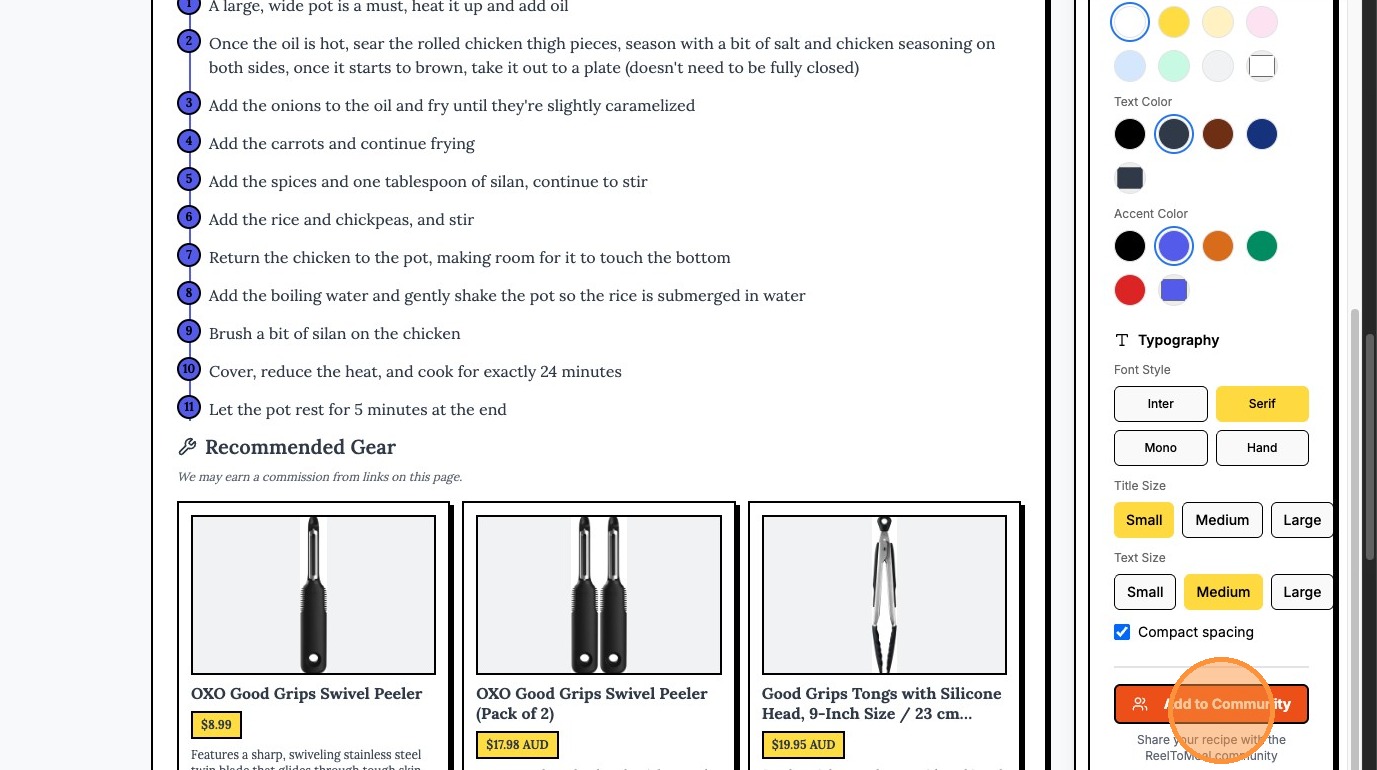
Choose your typography. Click "Serif" for a classic font style.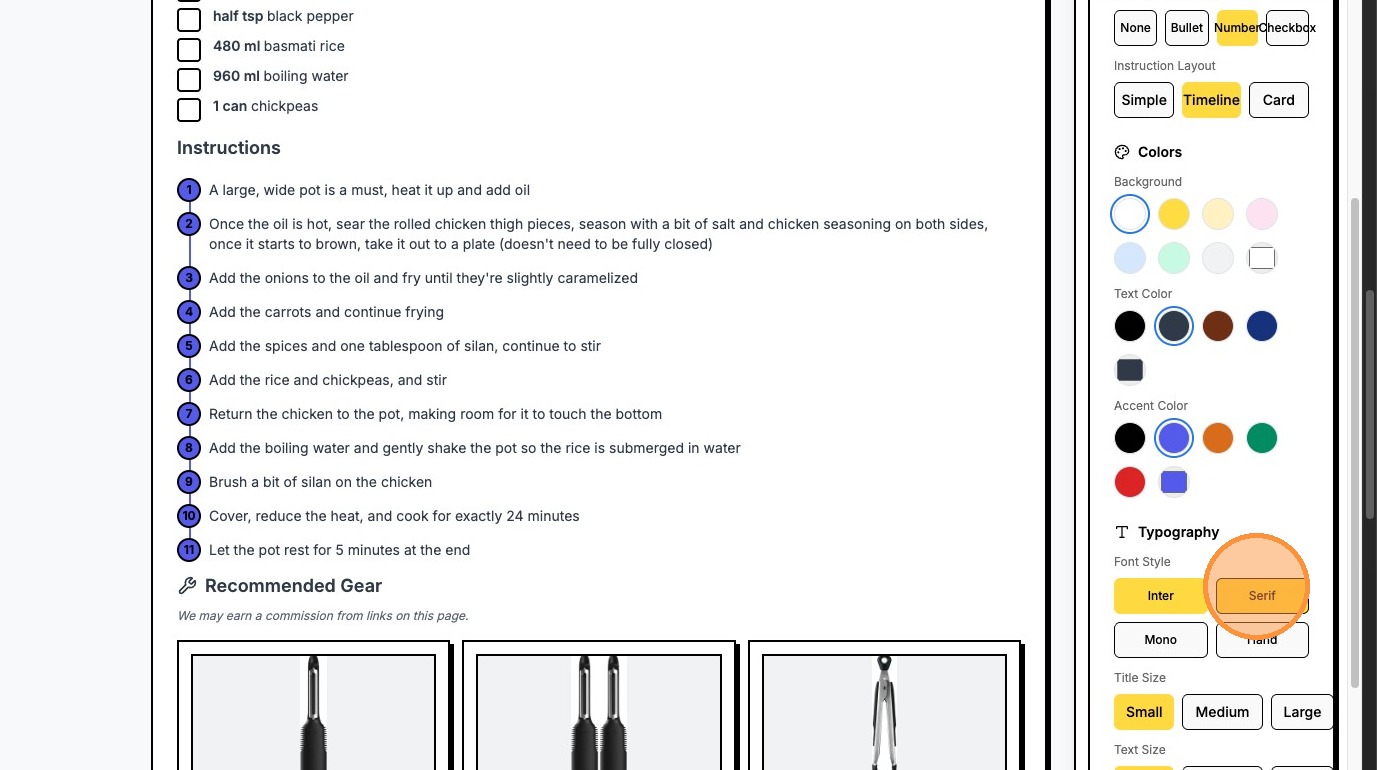
Adjust the font size by clicking "Medium" (or your preferred size).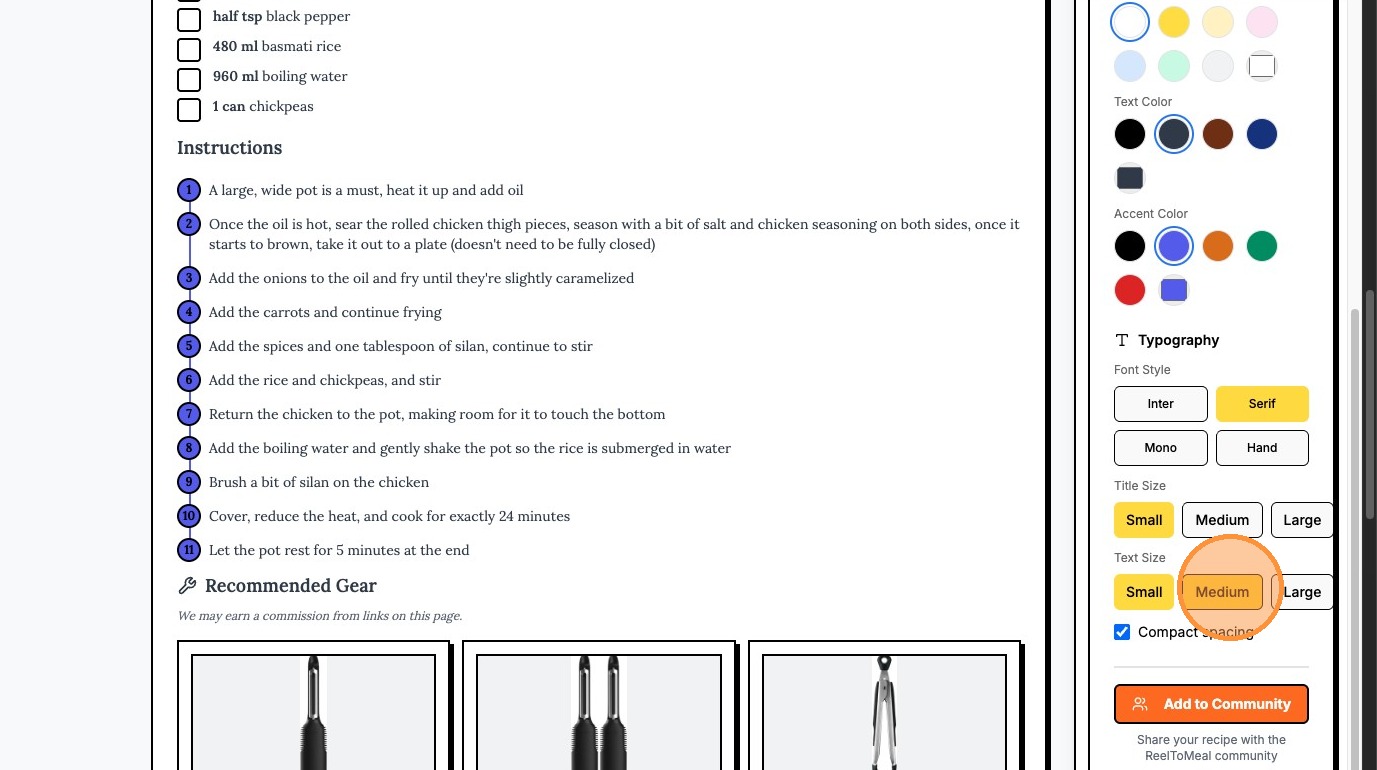
When ready to save, click "Add to Community".
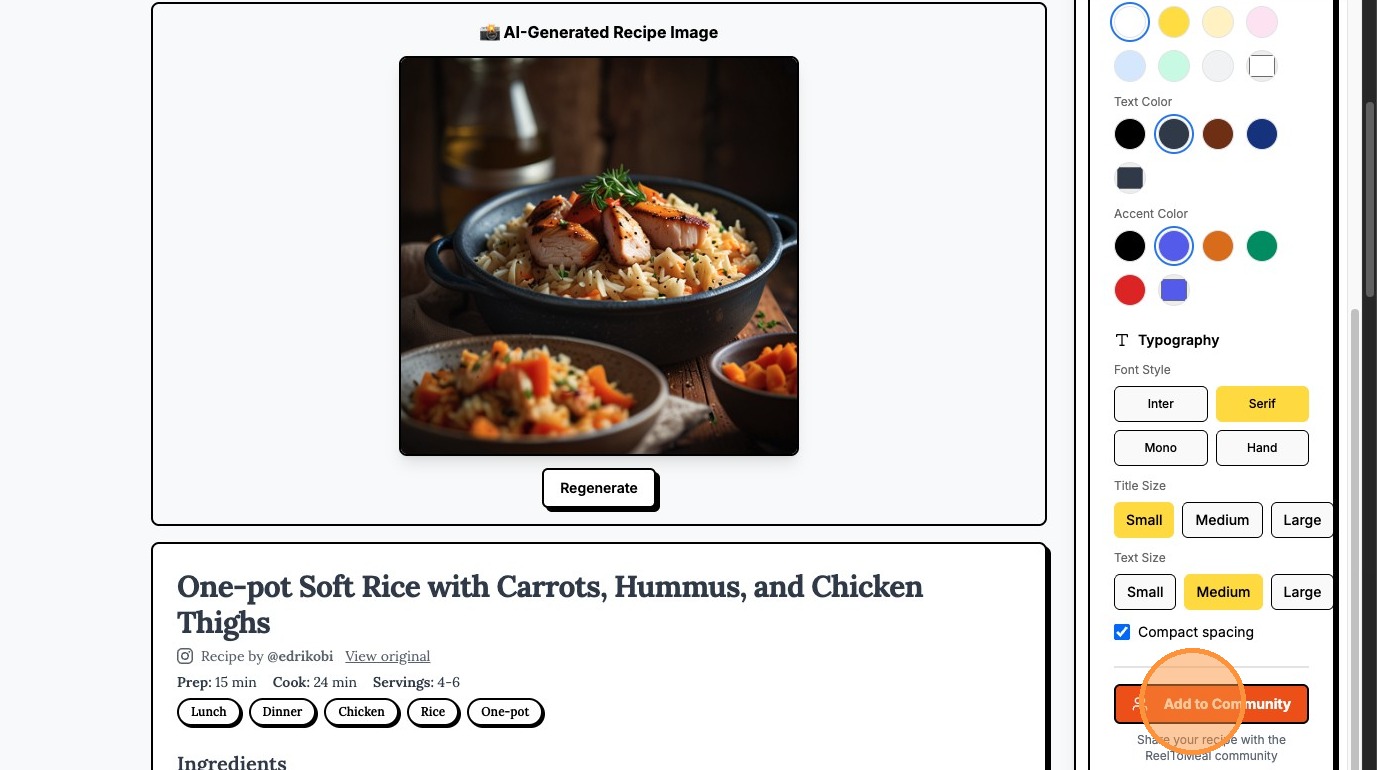
To create a professional food image, click "🎨 Generate Recipe Photo (AI)".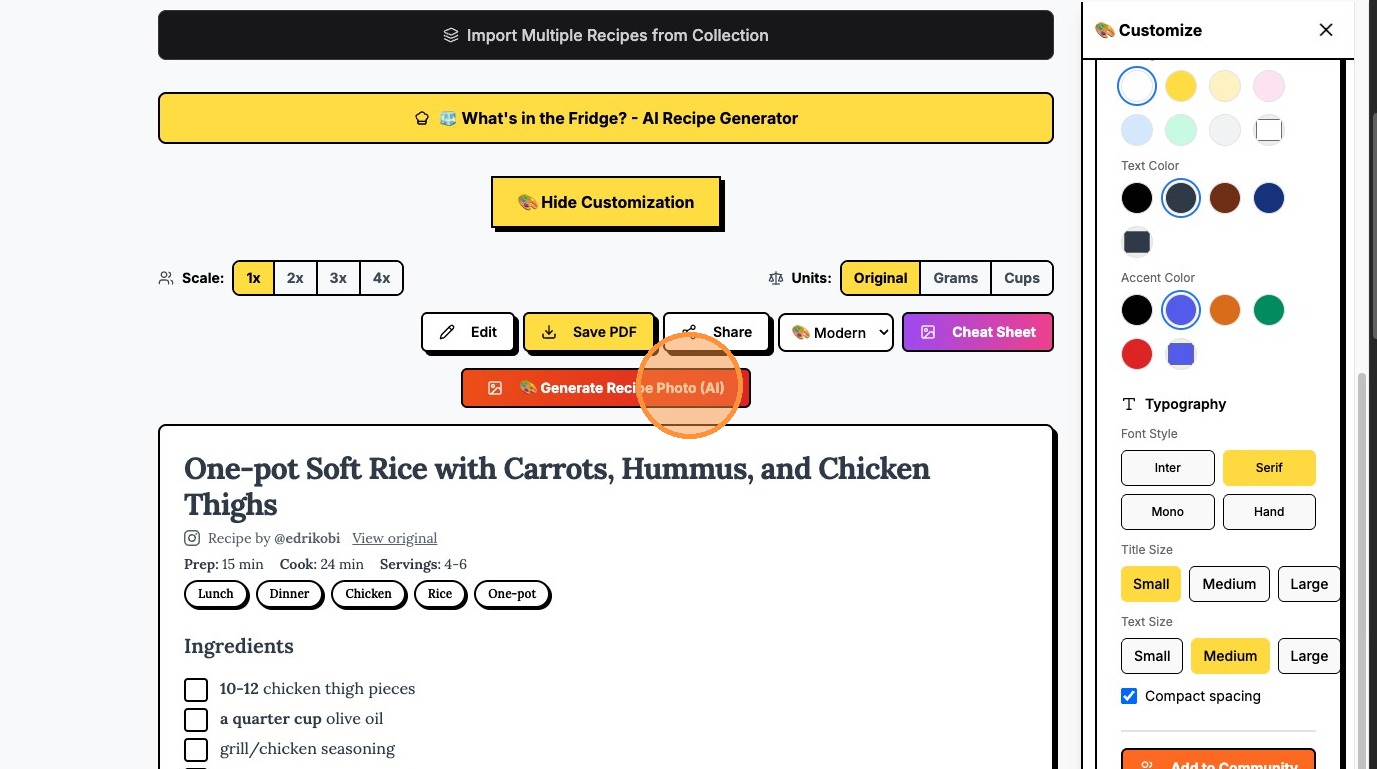
If you want a different variation of the image, click "Regenerate".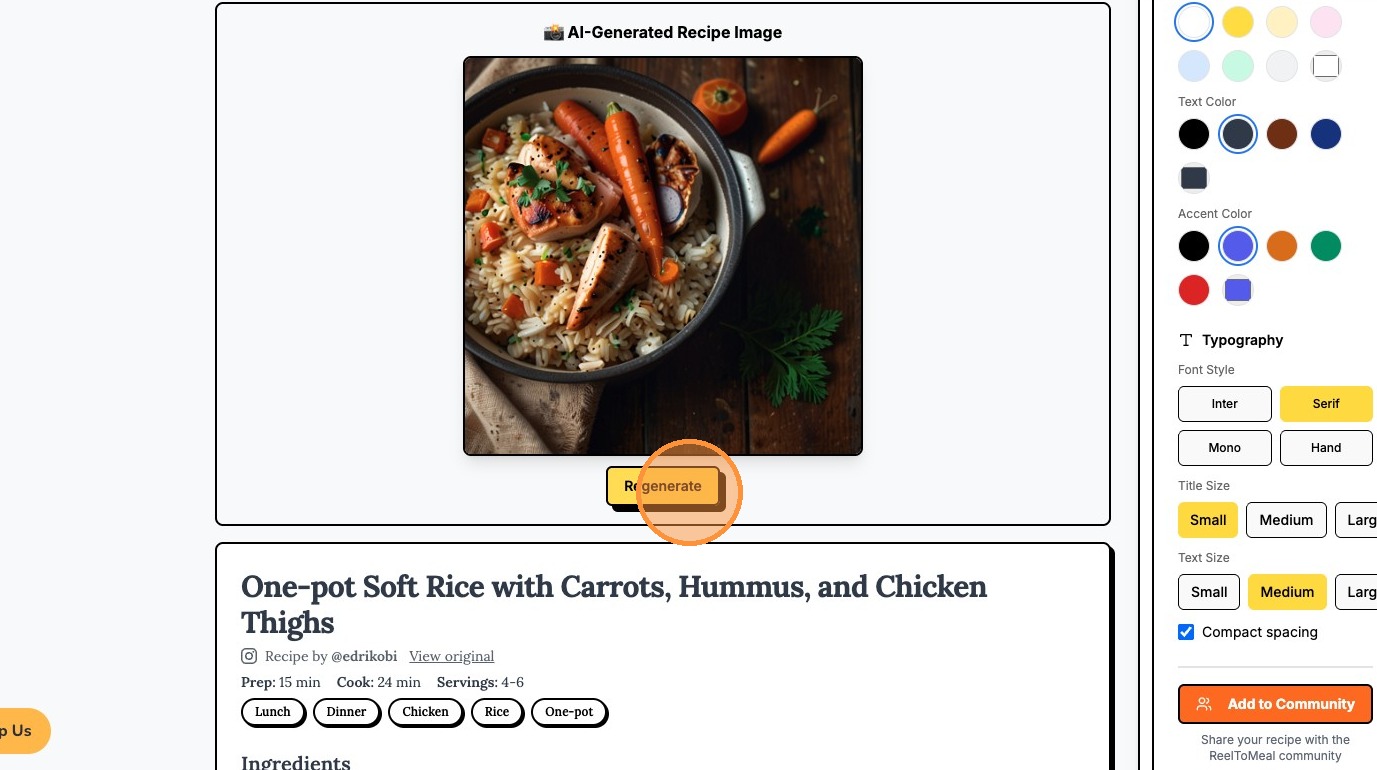
Once you are happy with all your changes and the new photo, click "Add to Community" to publish your recipe!