How to Fetch and Customize a Recipe from a URL on ReelToMeal
Master ReelToMeal: Fetch recipes from any URL, shorten instructions, switch layouts, and generate AI food photos instantly in this step-by-step guide.
How to Fetch and Customize a Recipe from a URL on ReelToMeal
Made by Amit Frenkel with Scribe
1. Head to the App: Navigate to https://reeltomeal.app/
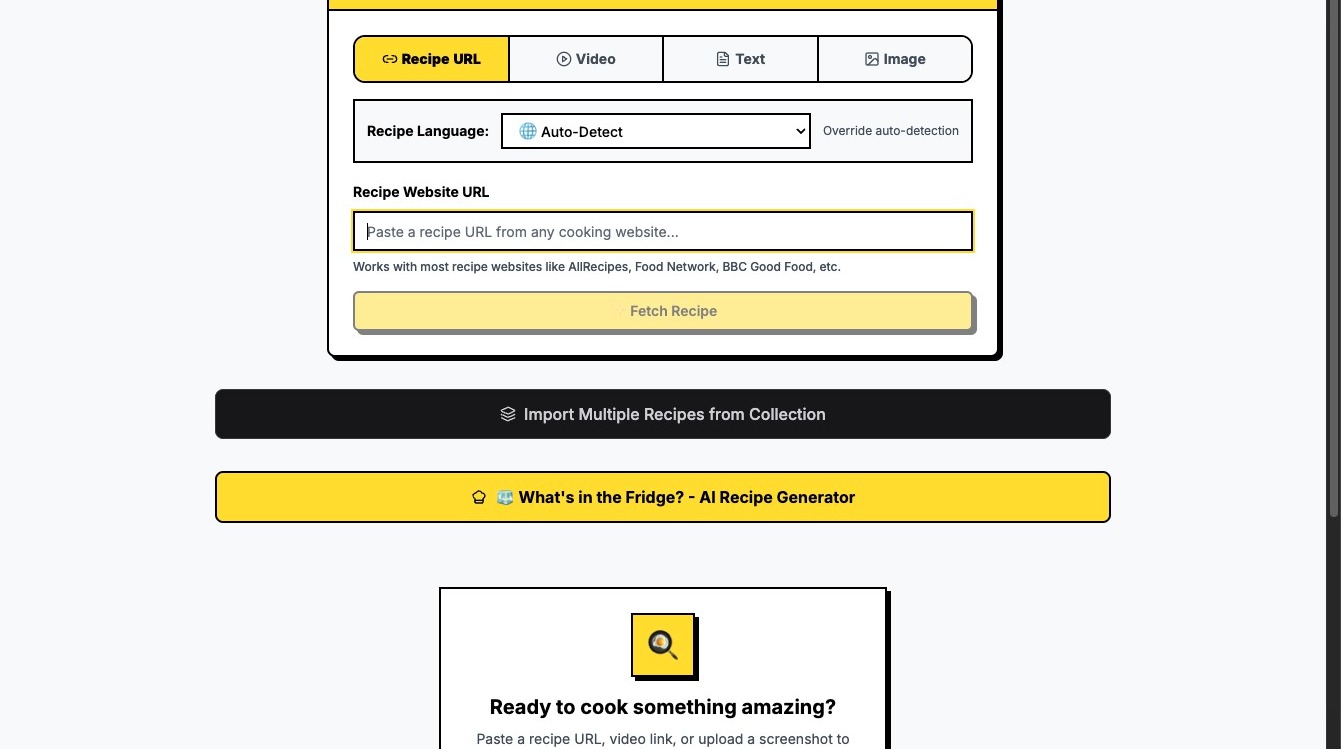
2. Select Input: Click on the Recipe Website URL field.
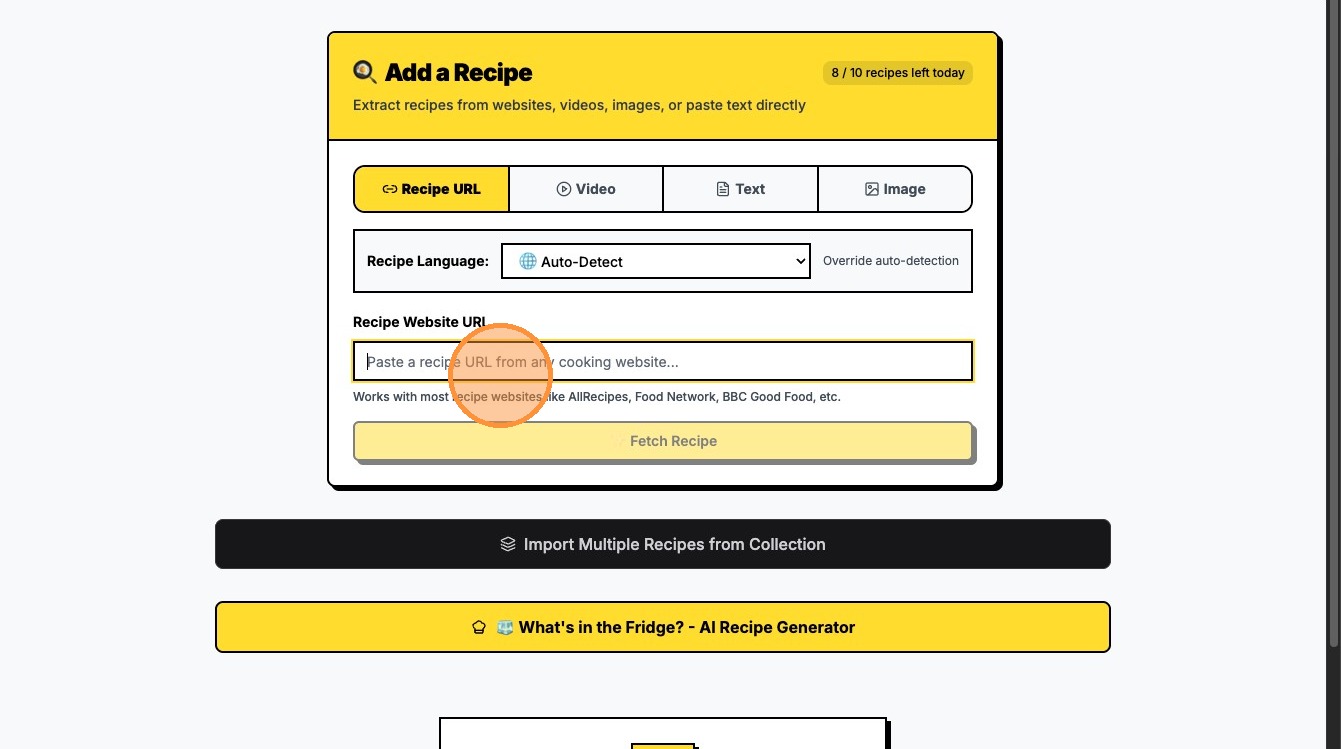
3. Paste Link: Paste your recipe link (Press Cmd + V or Ctrl + V).
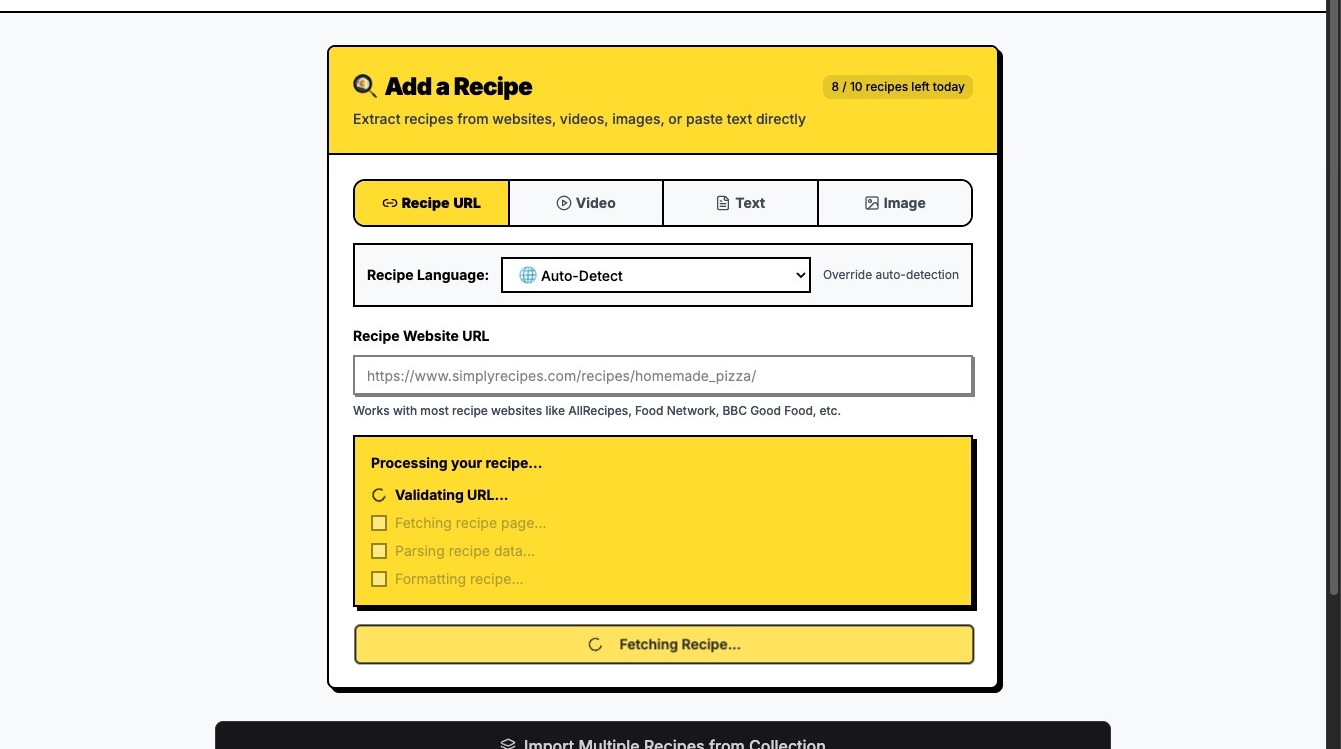
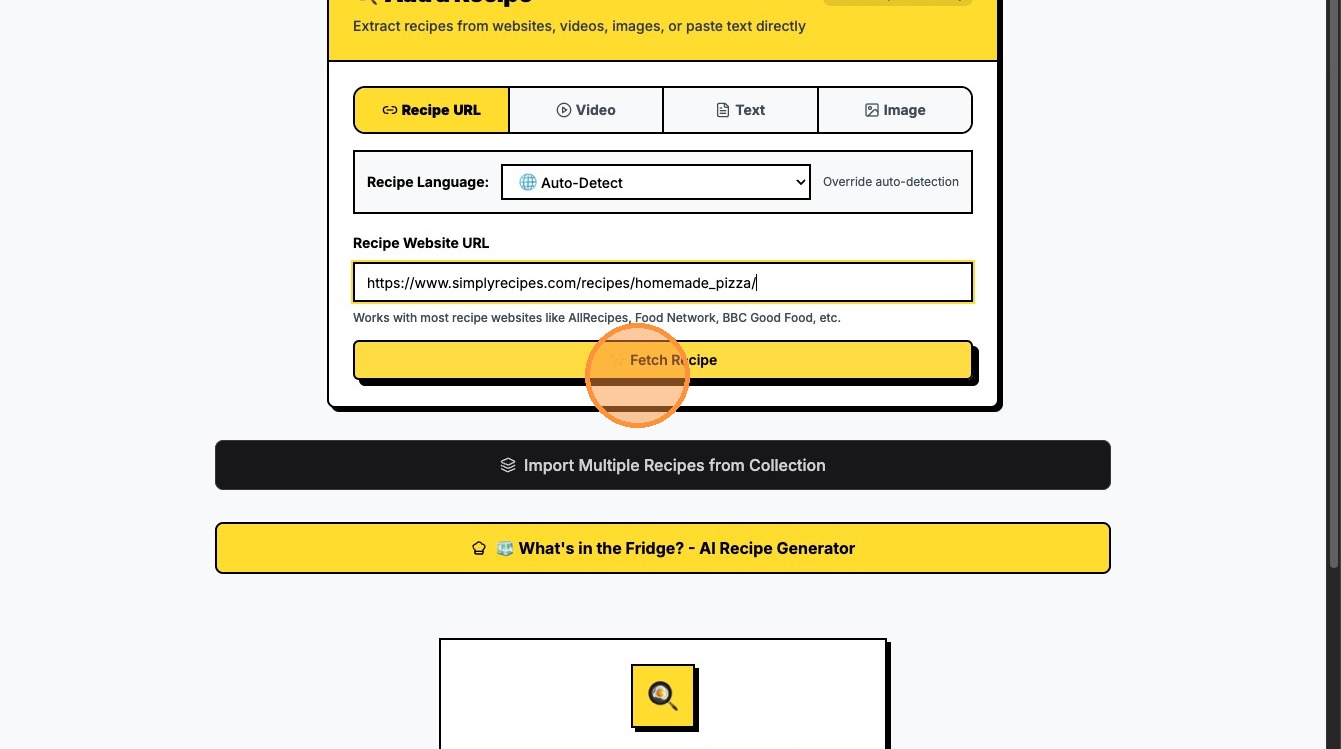
4. Extract: Click ✨ Fetch Recipe to load the ingredients and steps.
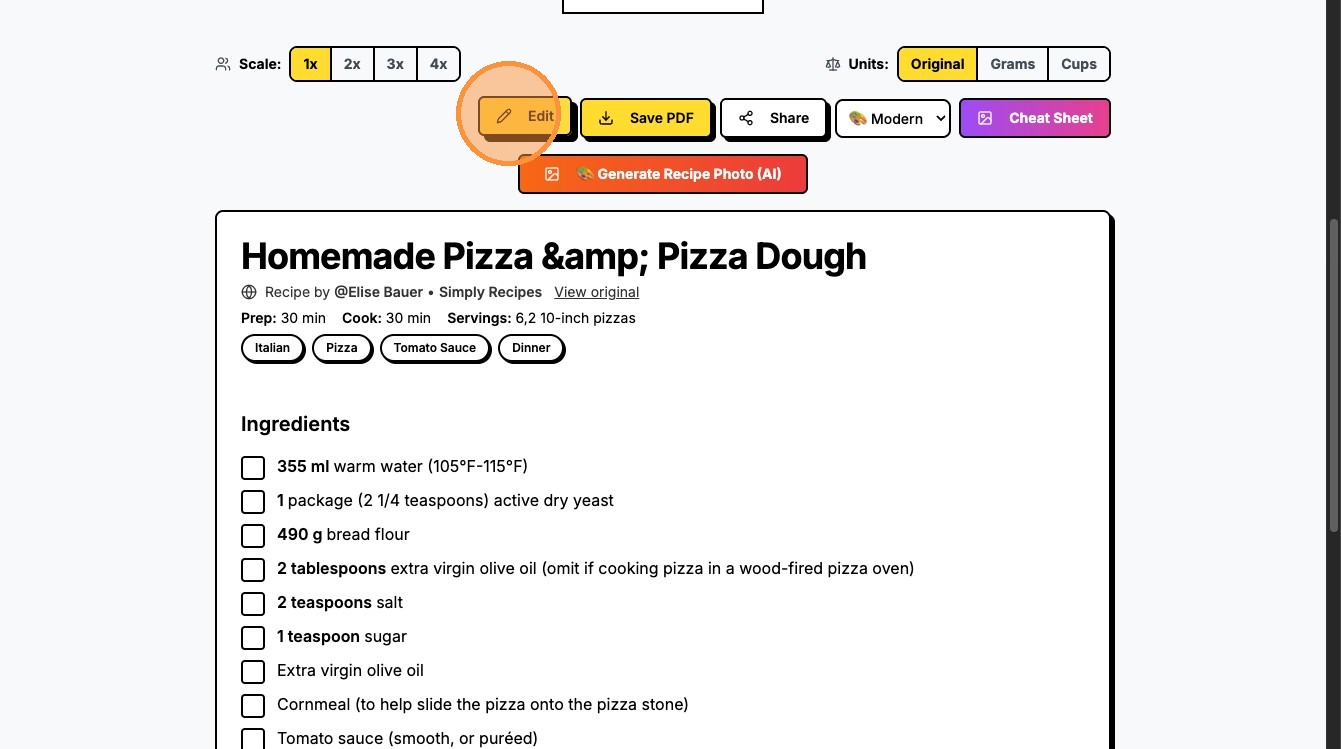
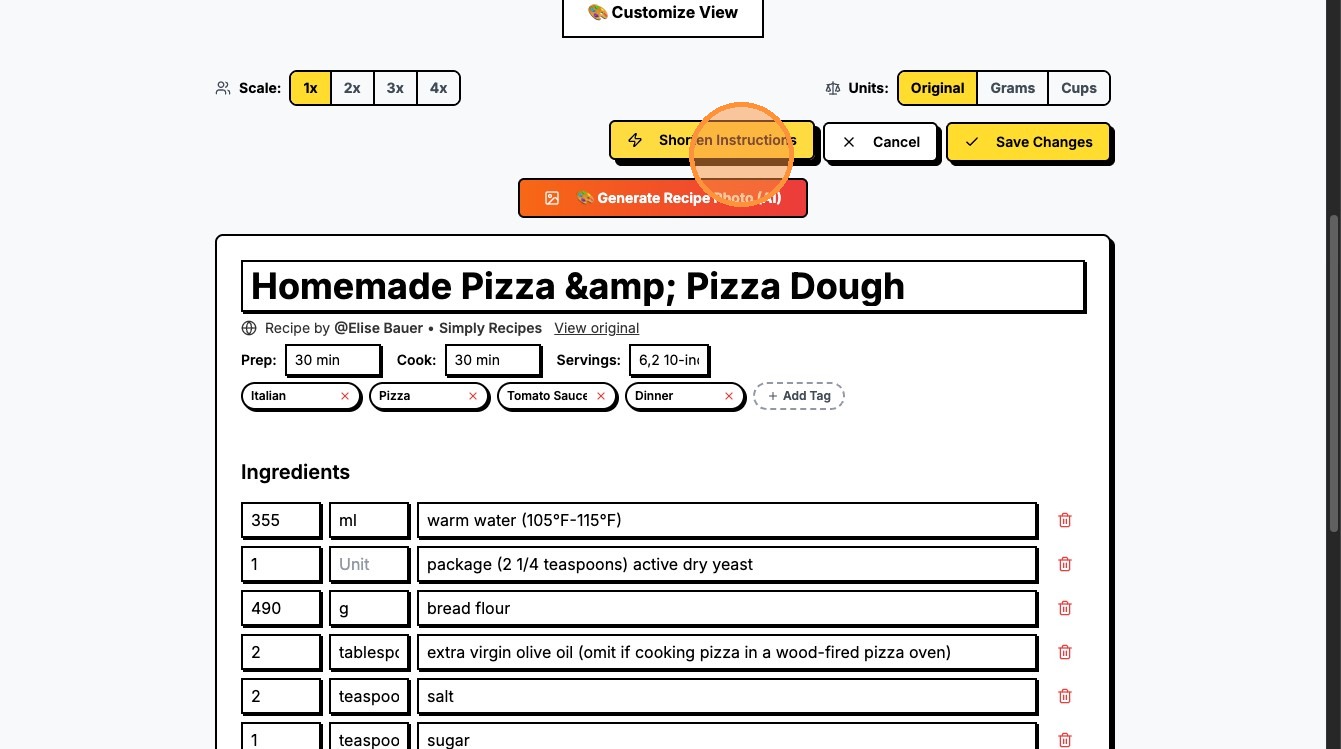
5. Refine Text: Click Shorten Instructions if you want to condense the text.
6. (Optional) Toggle Shorten Instructions again to see different variations.
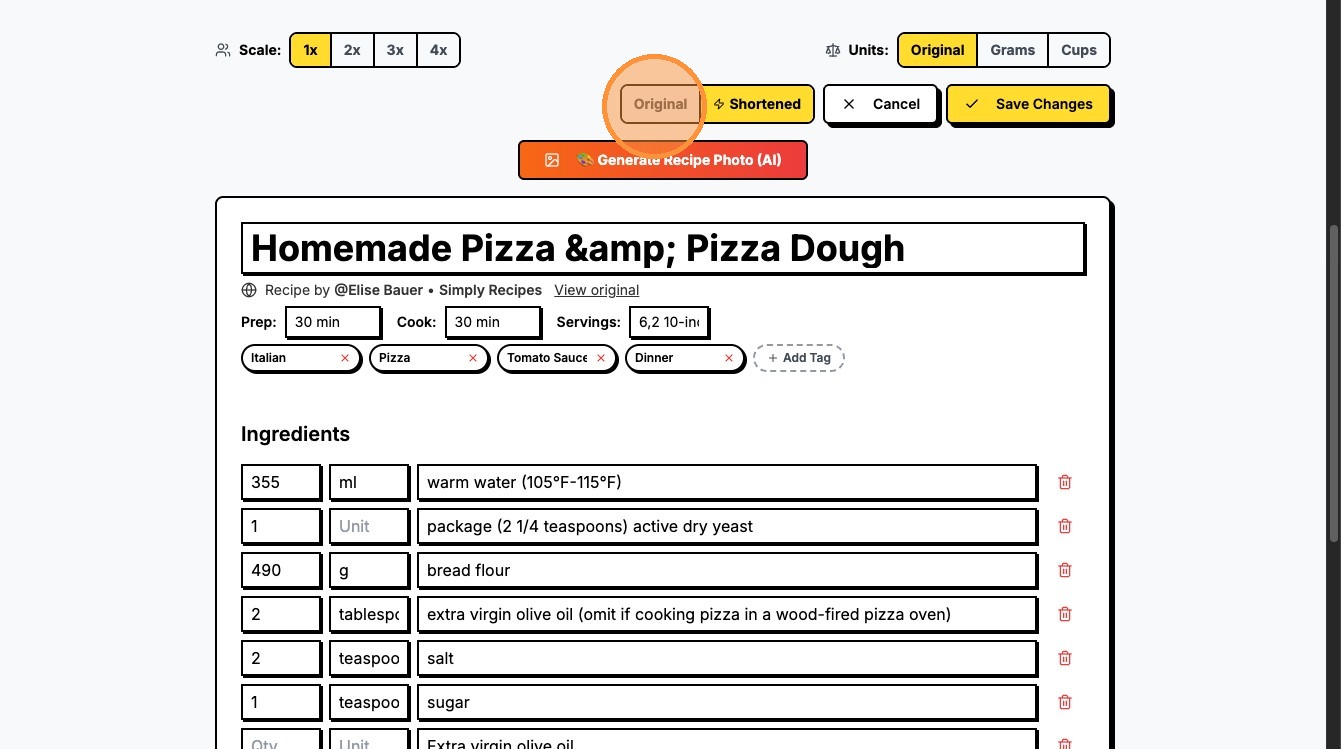
7. (Optional) Click Original if you prefer to revert to the full text.
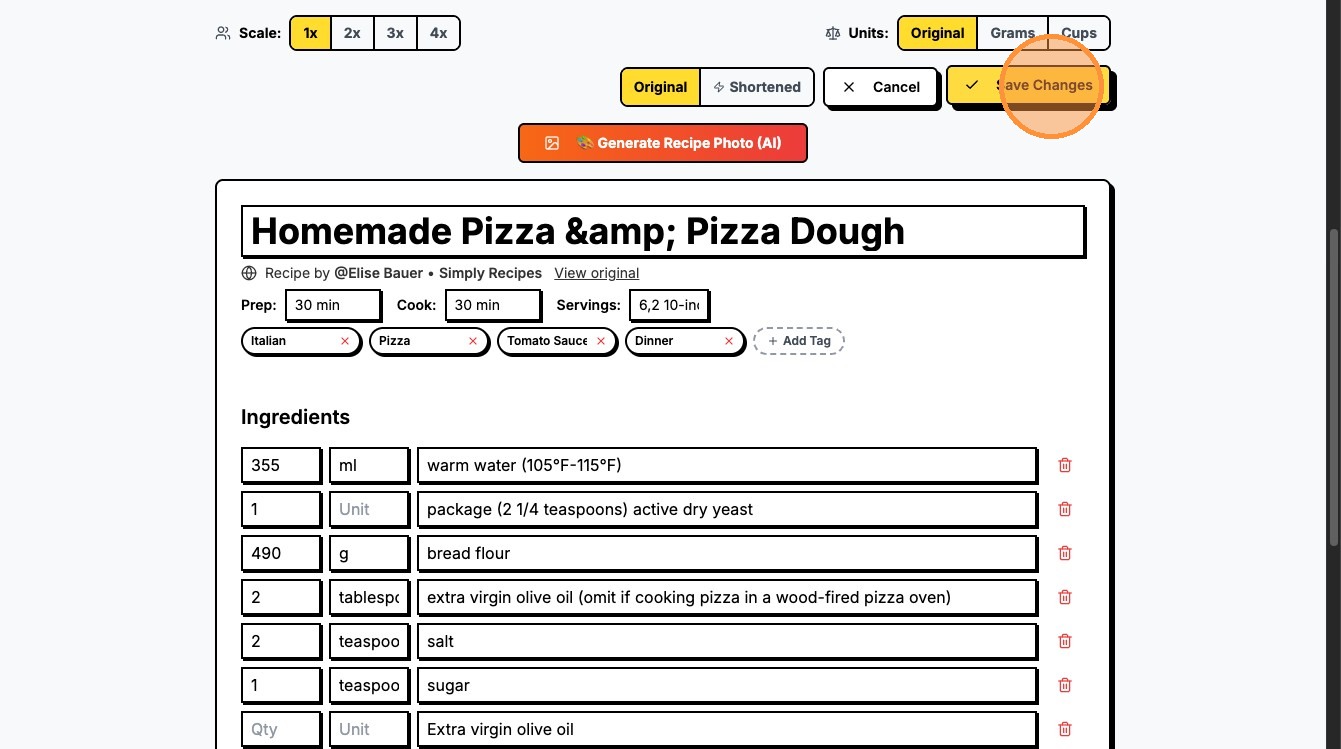
8. Confirm: Click Save Changes to apply your text edits.
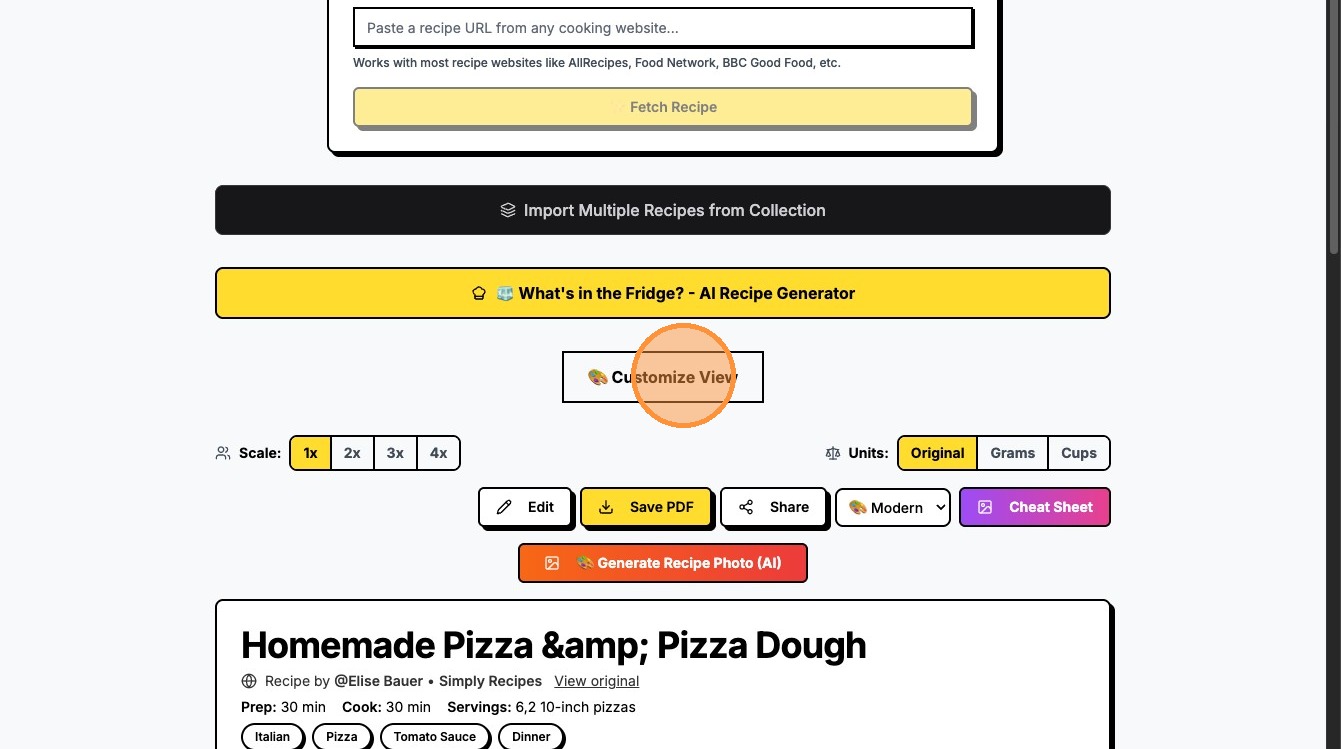
9. Open Editor: Click 🎨 Customize View to clean up the view.
10. View Options: Double-click Bullet to see a simple list view.
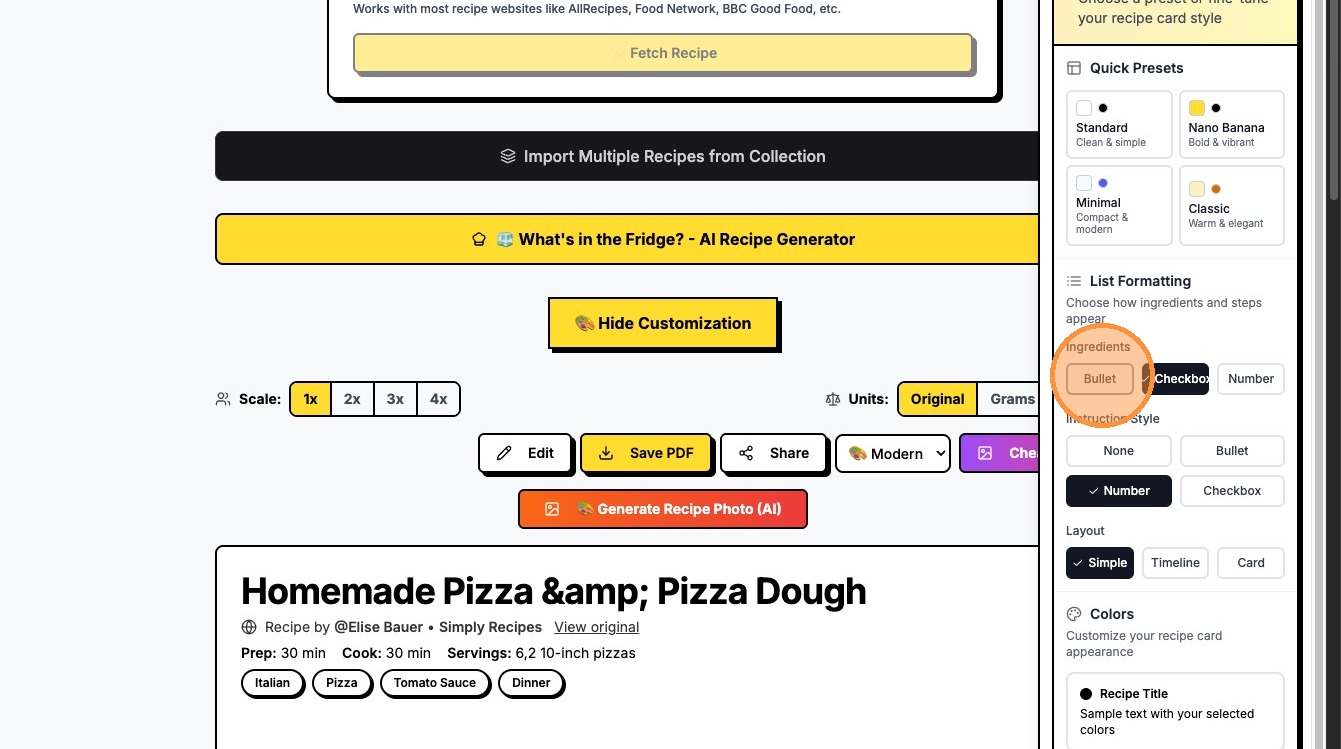
11. Step-by-Step: Click Number to switch to a numbered list.
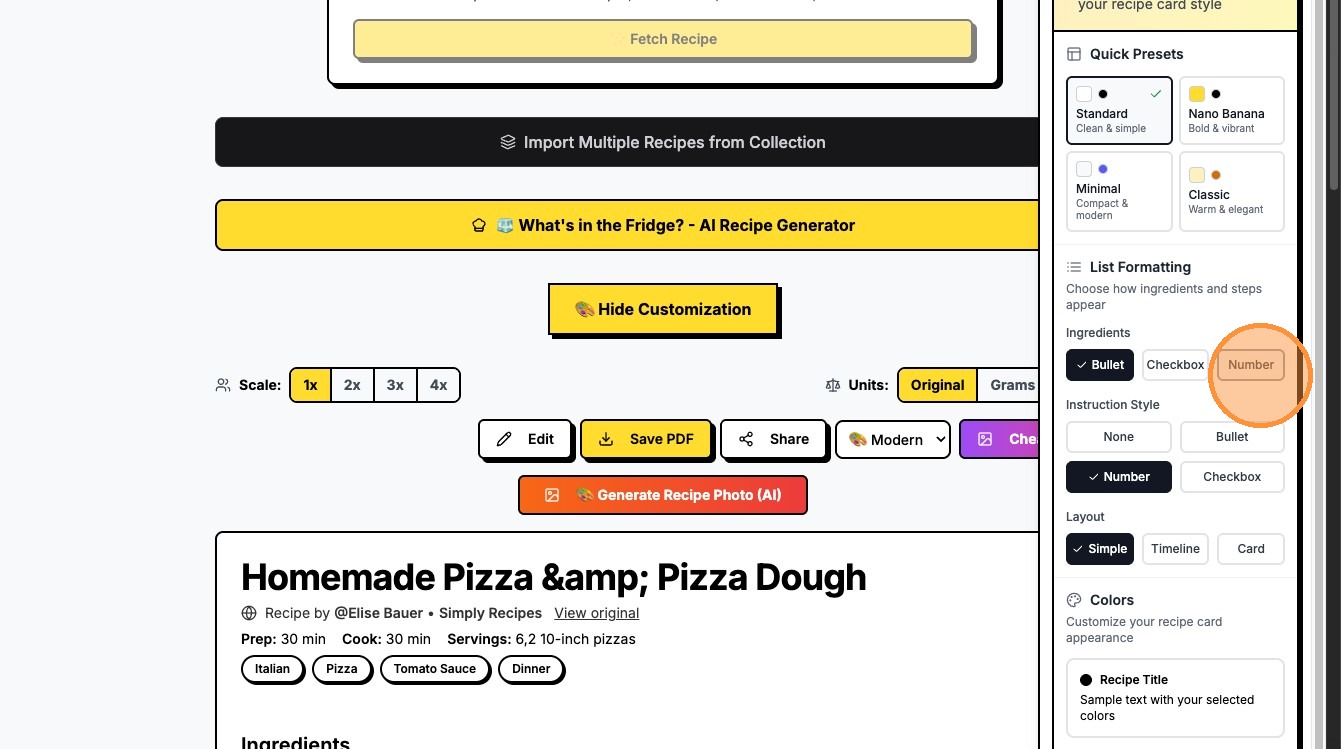
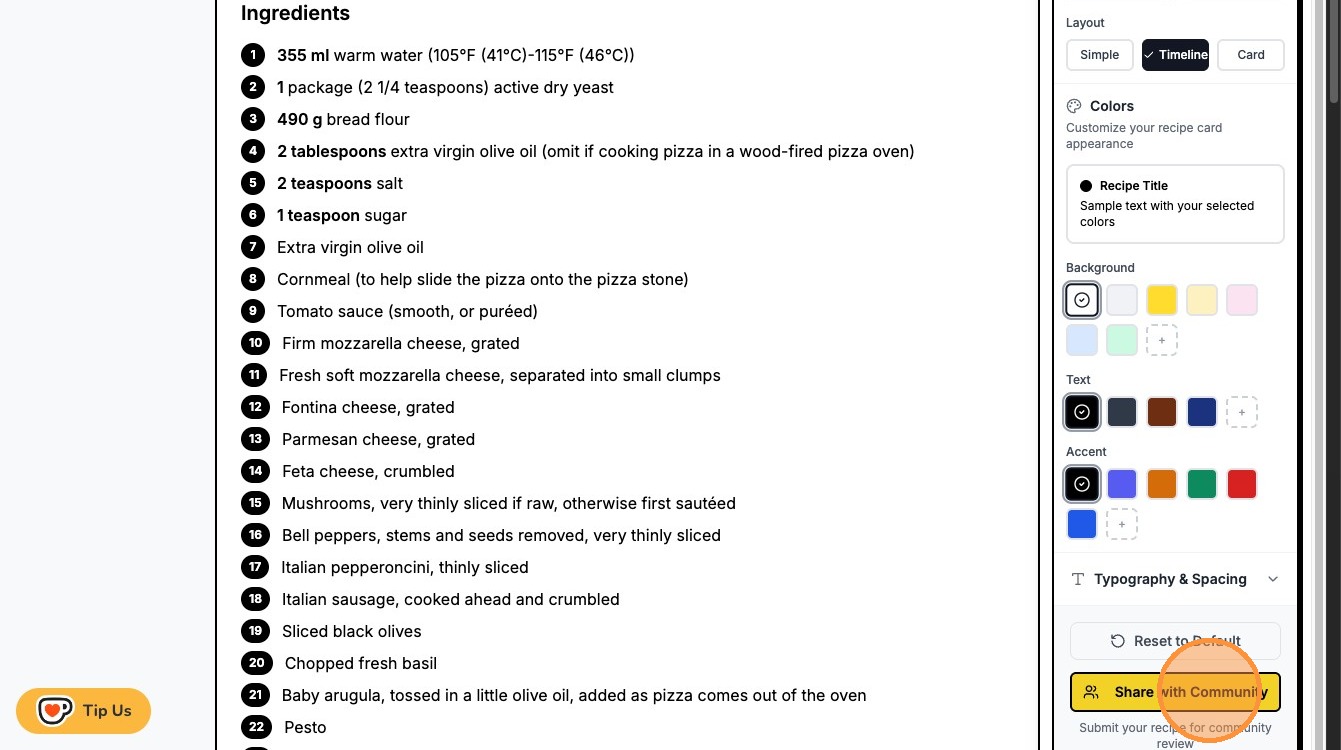
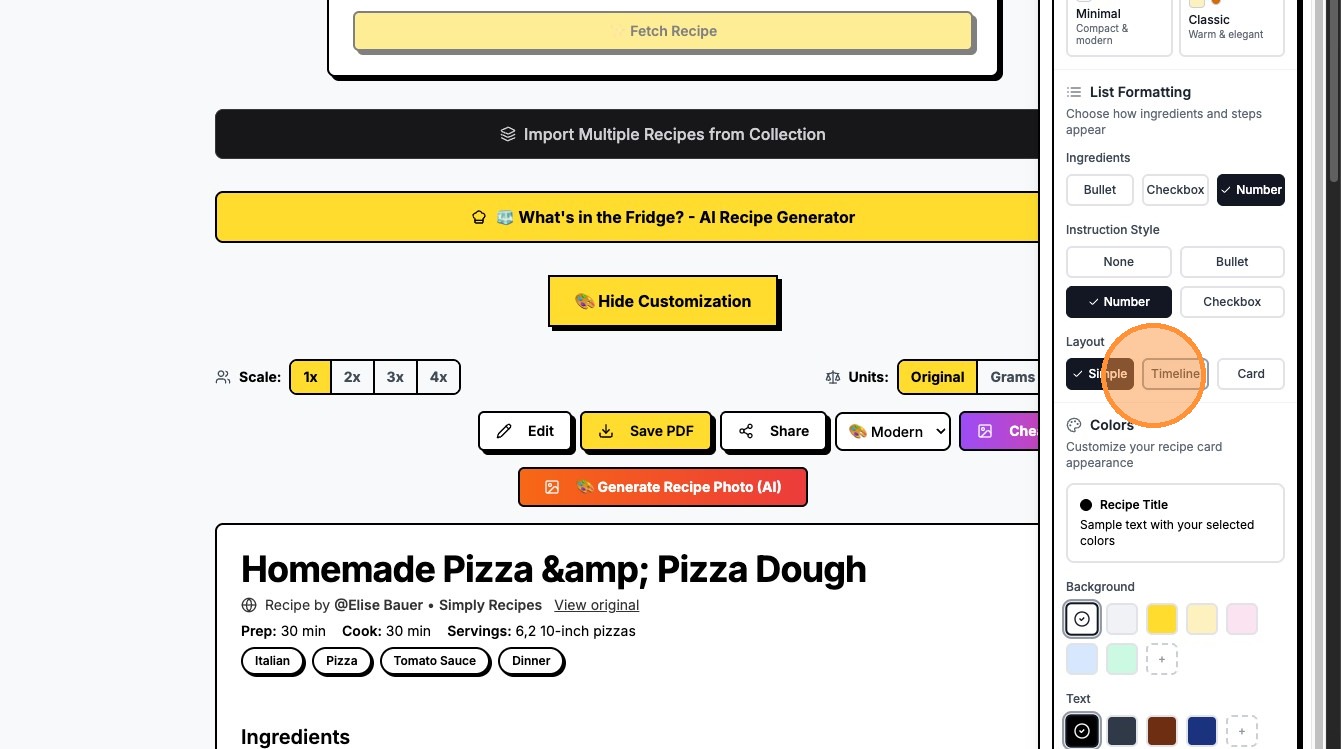
12. Visual View: Click Timeline to see the recipe as a progression.
13. Add Visuals: Click 🎨 Generate Recipe Photo (AI) to create a custom image for the dish
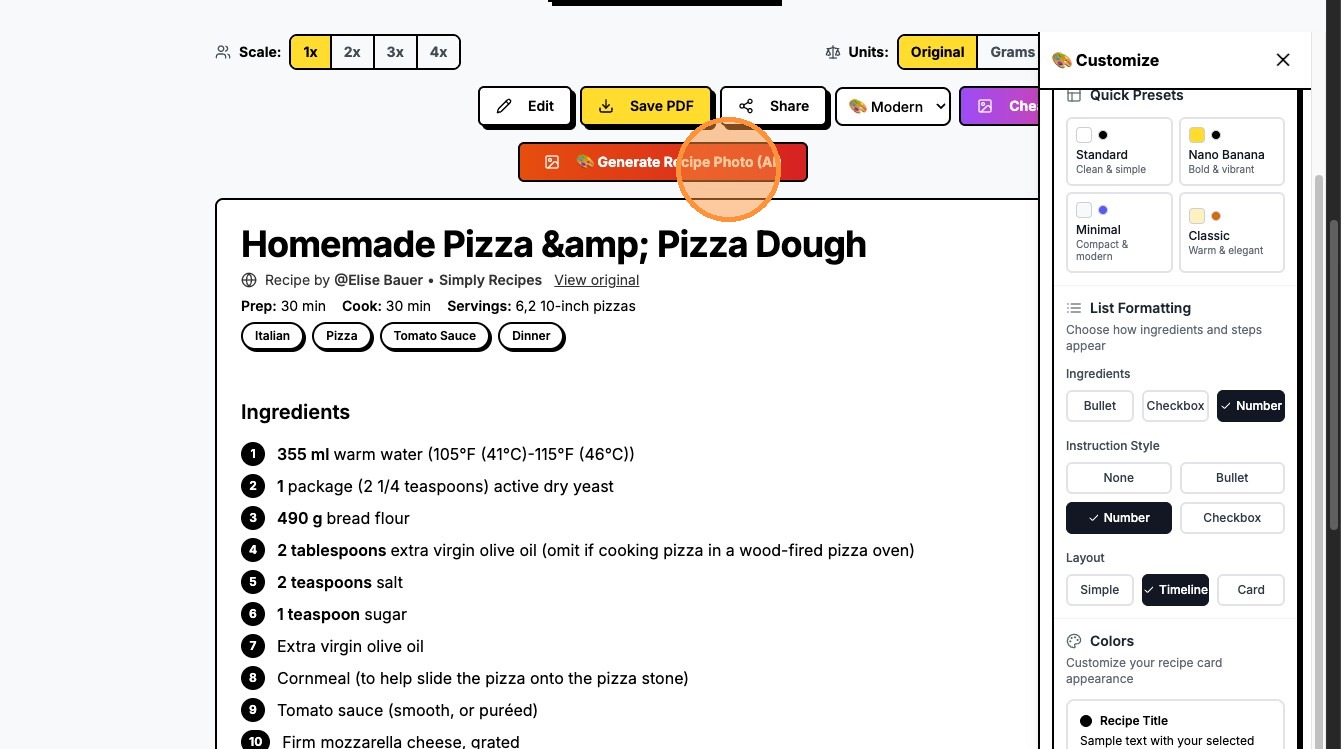
14. Finish: Wait for the system to process and submit your final recipe card.